Starting Your First Collection
On this page
What you’ll do
This walkthrough uses IVE’s Rei as an example. You’ll create a Rei collection, add card images from your gallery, and see them appear in your collection.
1. Create IVE and Rei
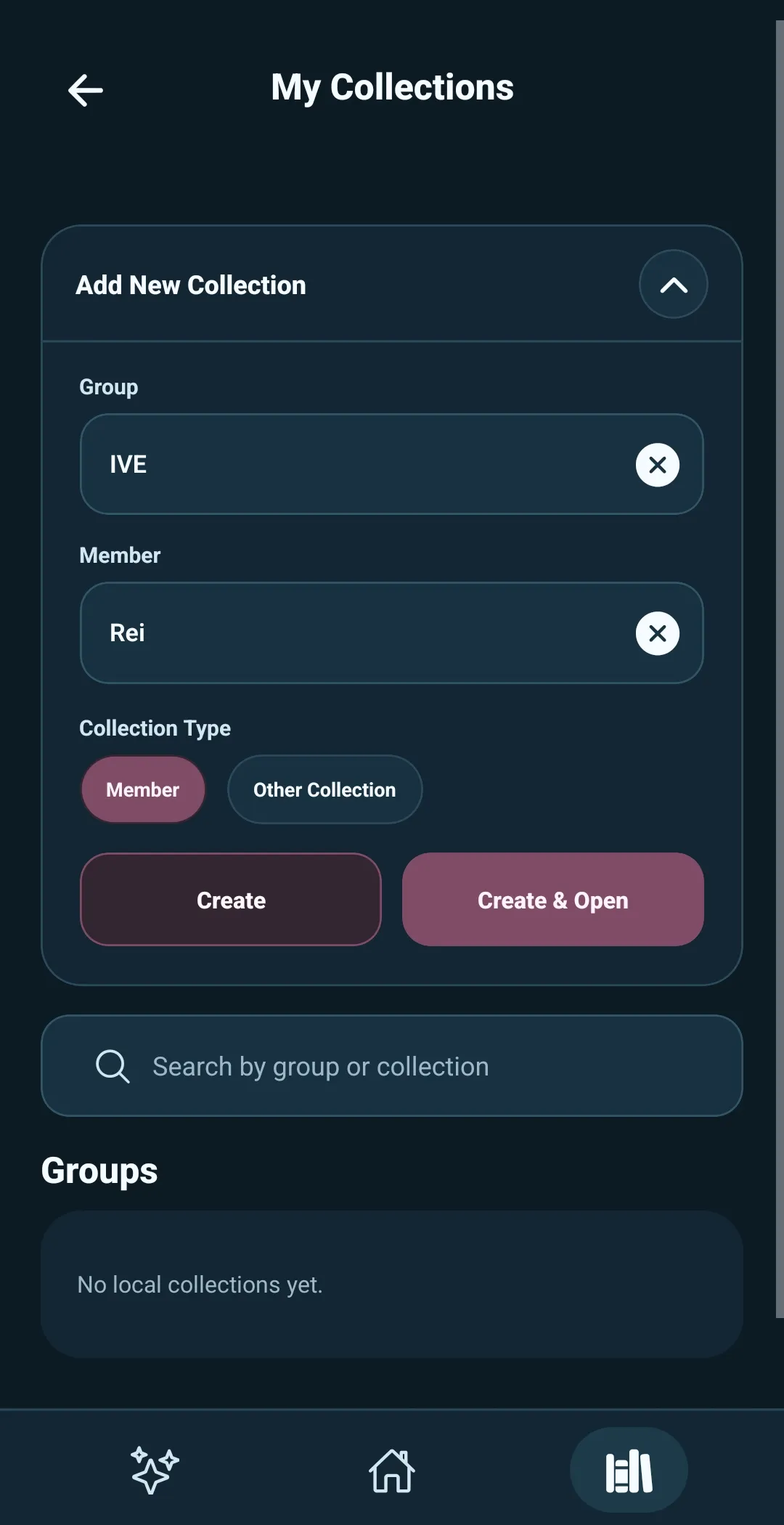
- Open My Collections.
- Select Add New Collection.
- Enter
IVEin the Group field. - Enter
Reiin the Member field. - Keep Collection Type set to Member.
- Select Create and Open.
You can add images for IVE and Rei later.
2. Open Template Builder
Rei opens as a blank collection. The section says No Cards Yet.
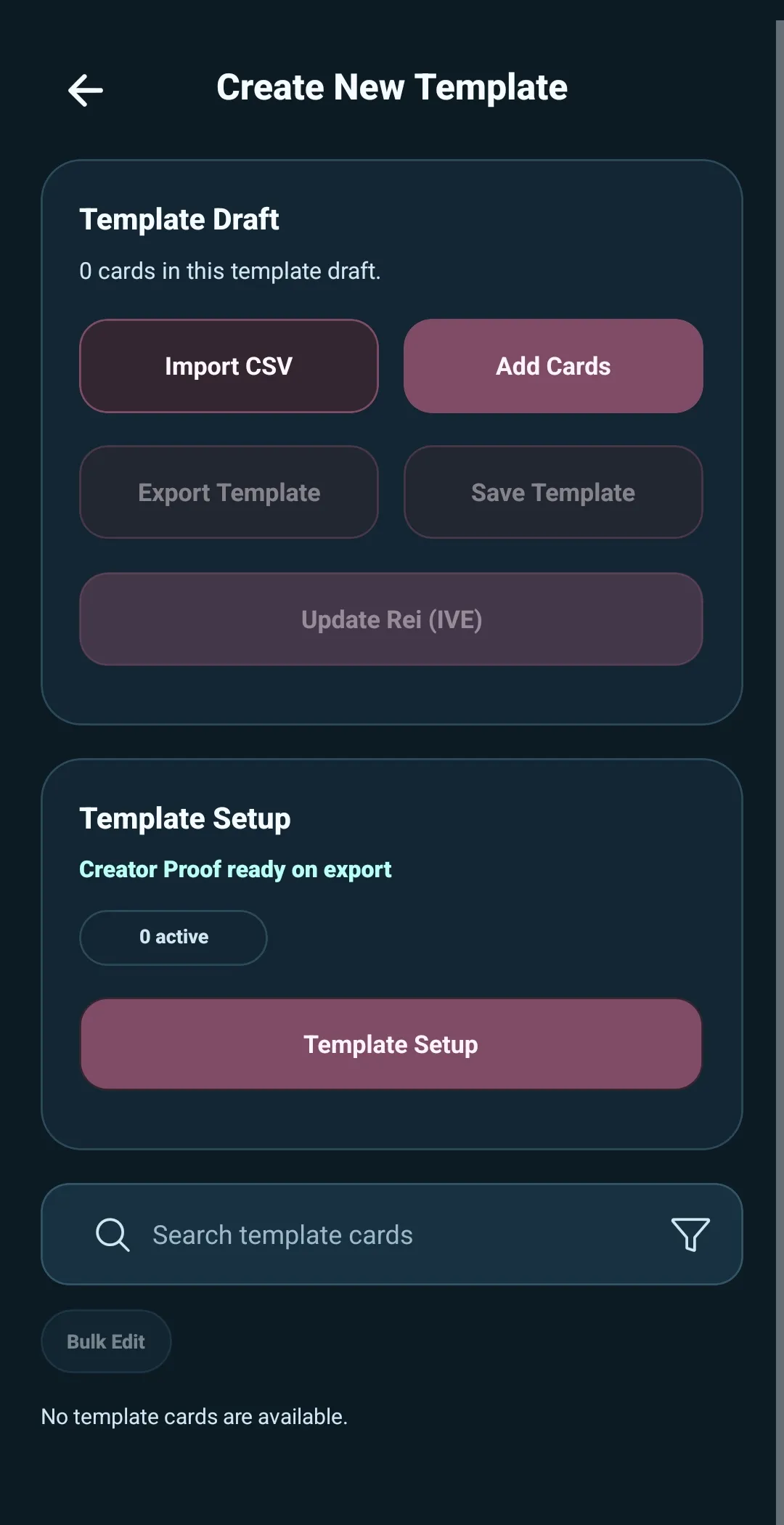
- Select Open Template Builder.
- On the main Template Builder screen, select Create New Template.
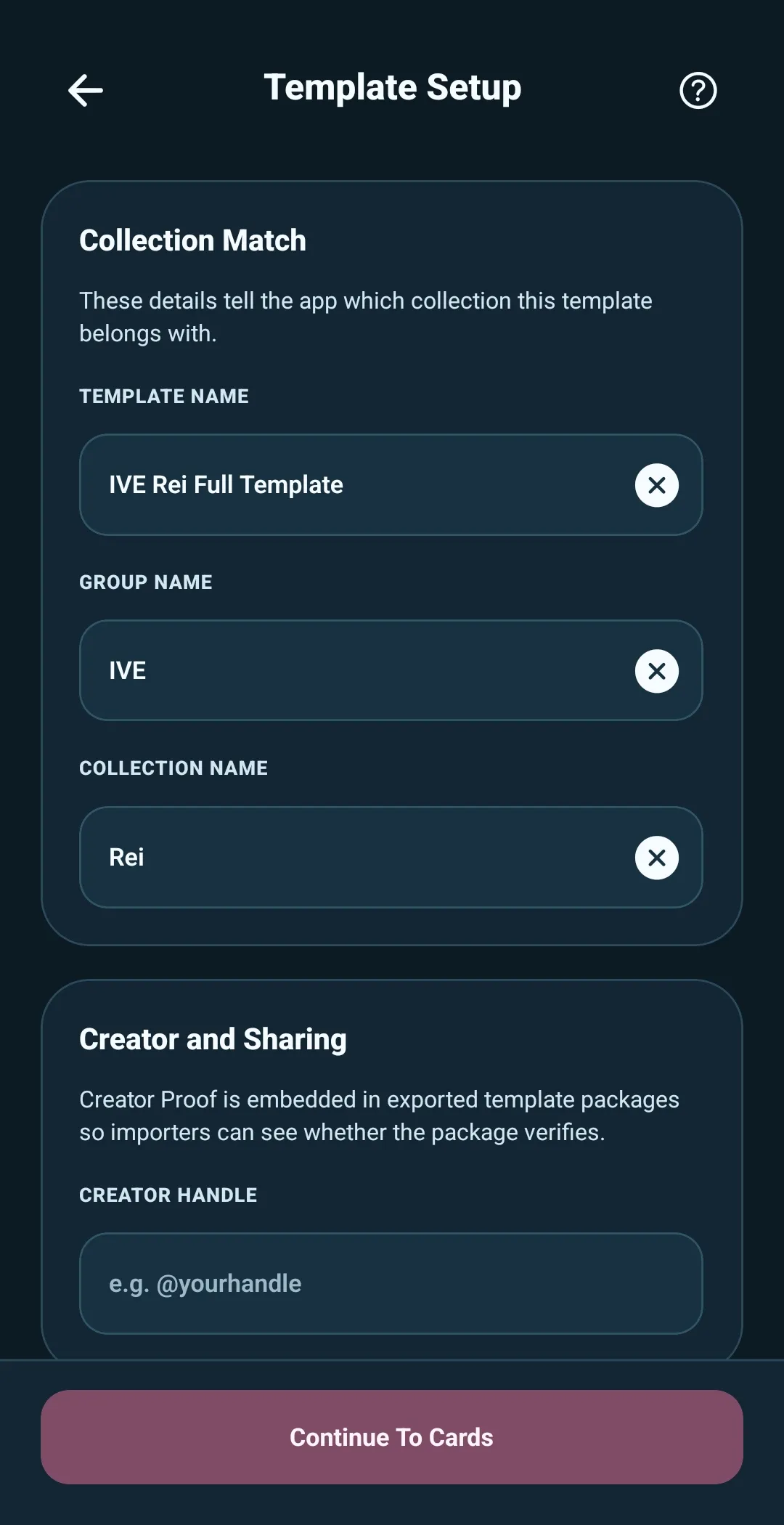
- Enter a Template Name, set Group Name to
IVE, and set Collection Name toRei. - Leave the other optional fields blank for now.
- Select Continue to Cards.
3. Add Rei cards
- Select Add Cards.
- Choose Gallery.
- Select pre-cropped Rei photocard images from your personal gallery.
Gallery adds images as selected, so crop card images before importing them when needed. Prefer to photograph cards now? Choose Quick Capture instead, then capture the cards you want to add.
4. Confirm, then organize your cards
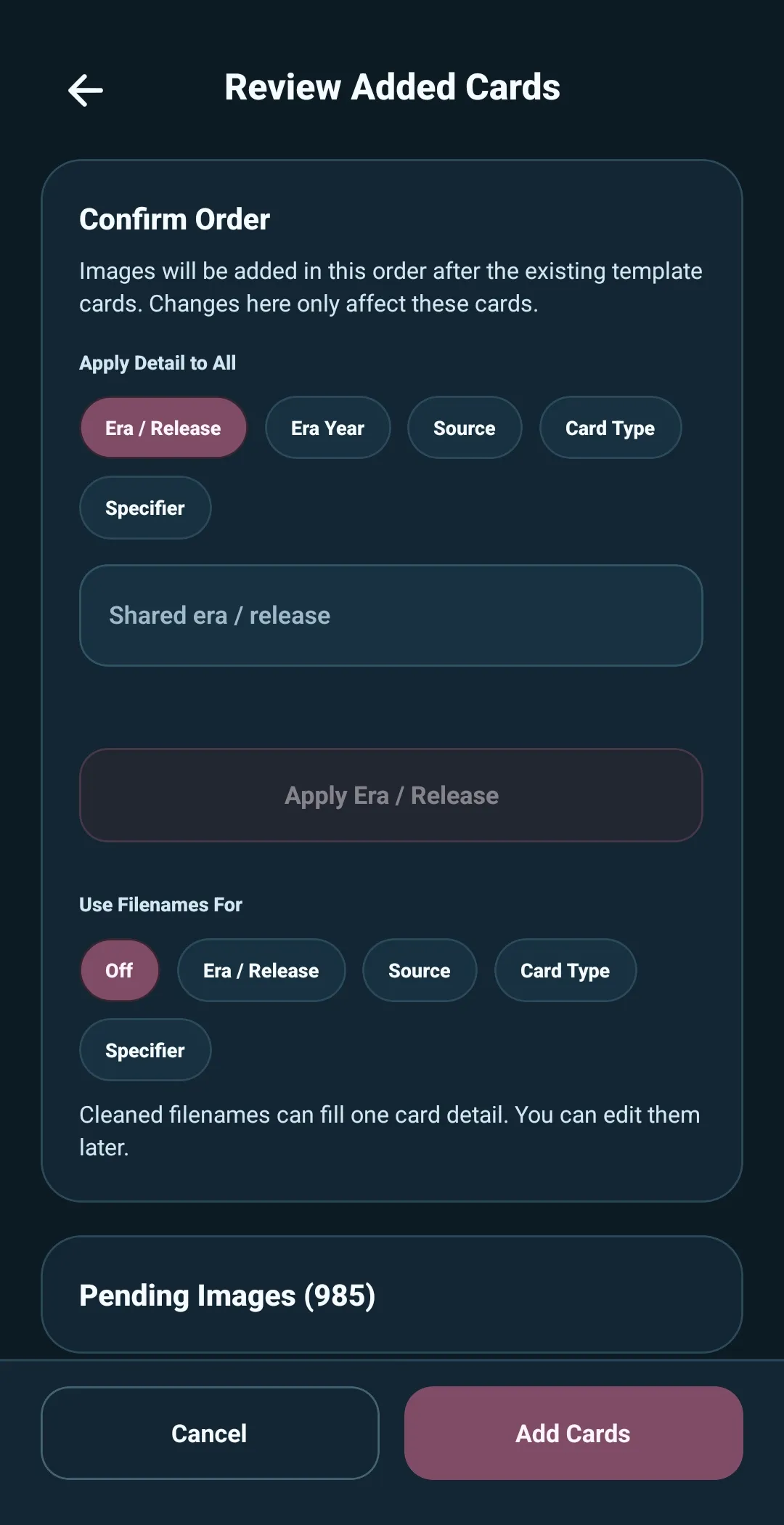
- When Review Added Cards opens, select Add Cards if the review looks right.
Why continue without changes? Review Added Cards is useful for shared details and other batch changes before cards enter the template. This first walkthrough keeps that step simple.
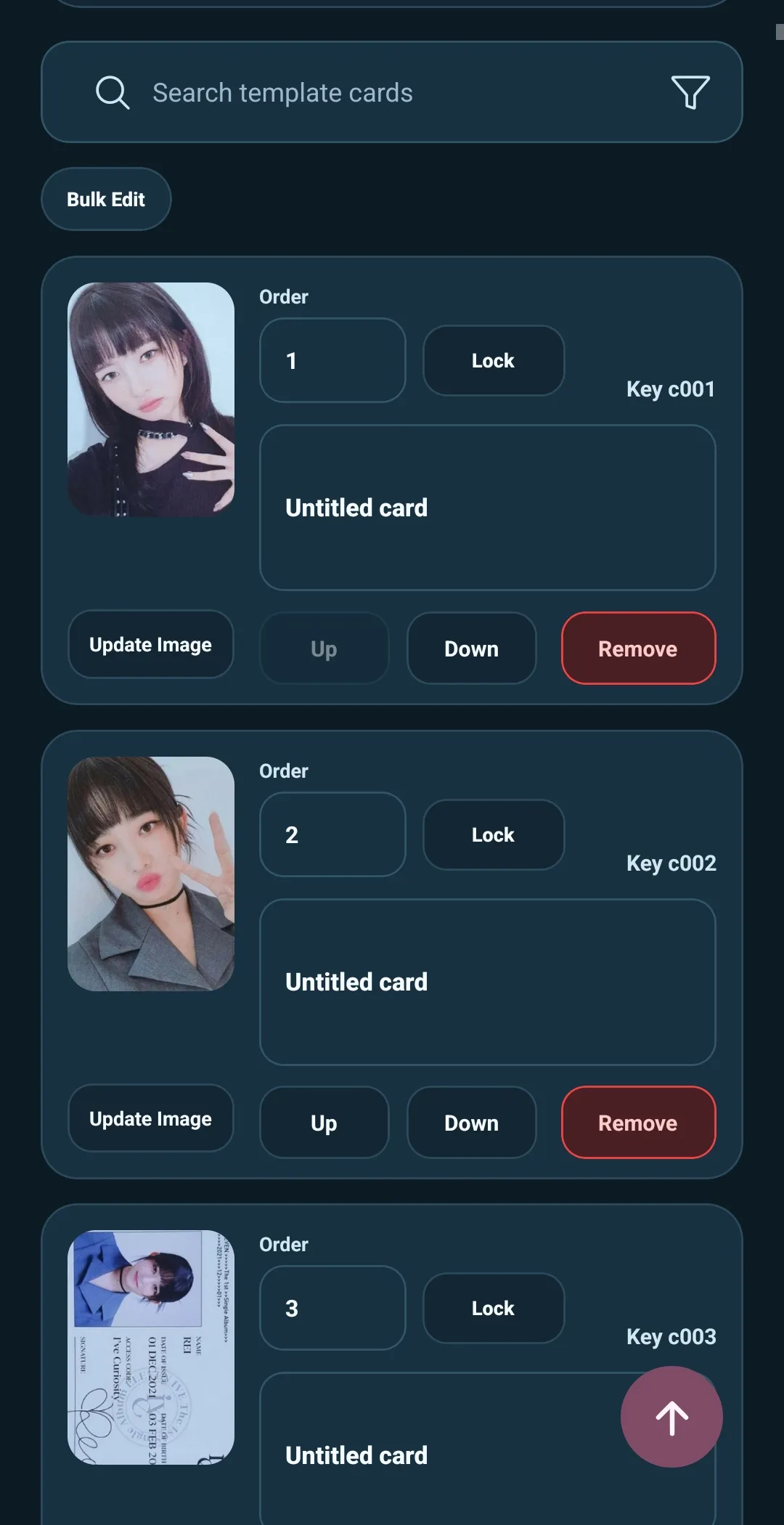
- Back in Template Builder, arrange cards in the order you want.
- Optionally apply shared details to a batch.
- Select an Untitled Card field to edit an individual card.
5. Update Rei’s collection
- Return to the top of Template Builder.
- Select Update Rei (IVE).
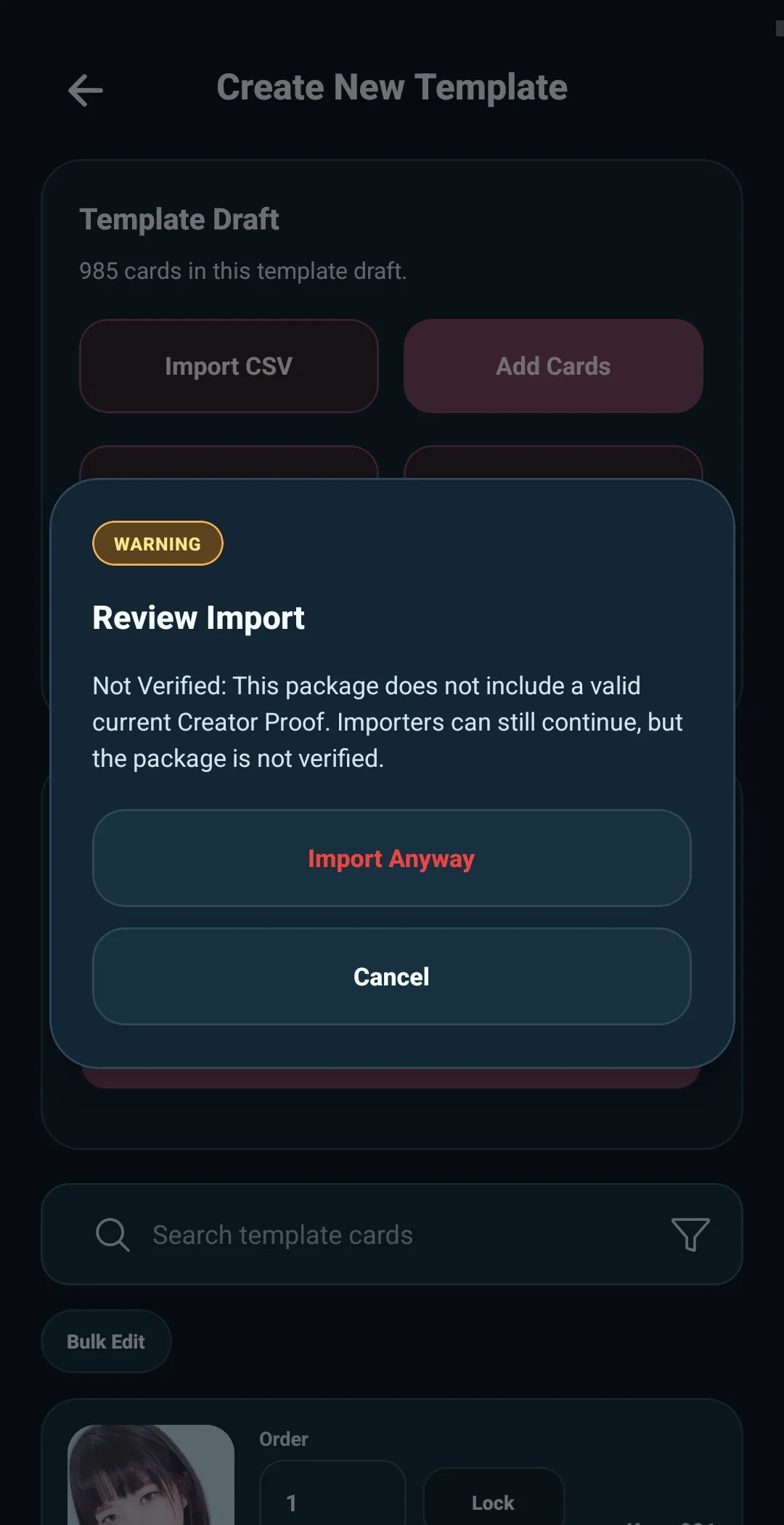
- Review the Not Verified Creator Proof notice. This local template has not been exported for sharing, so 5585 explains that the package does not have a valid current sharing signature.
- Select Update Collection to continue with the collection update.
6. Build Image Matching later
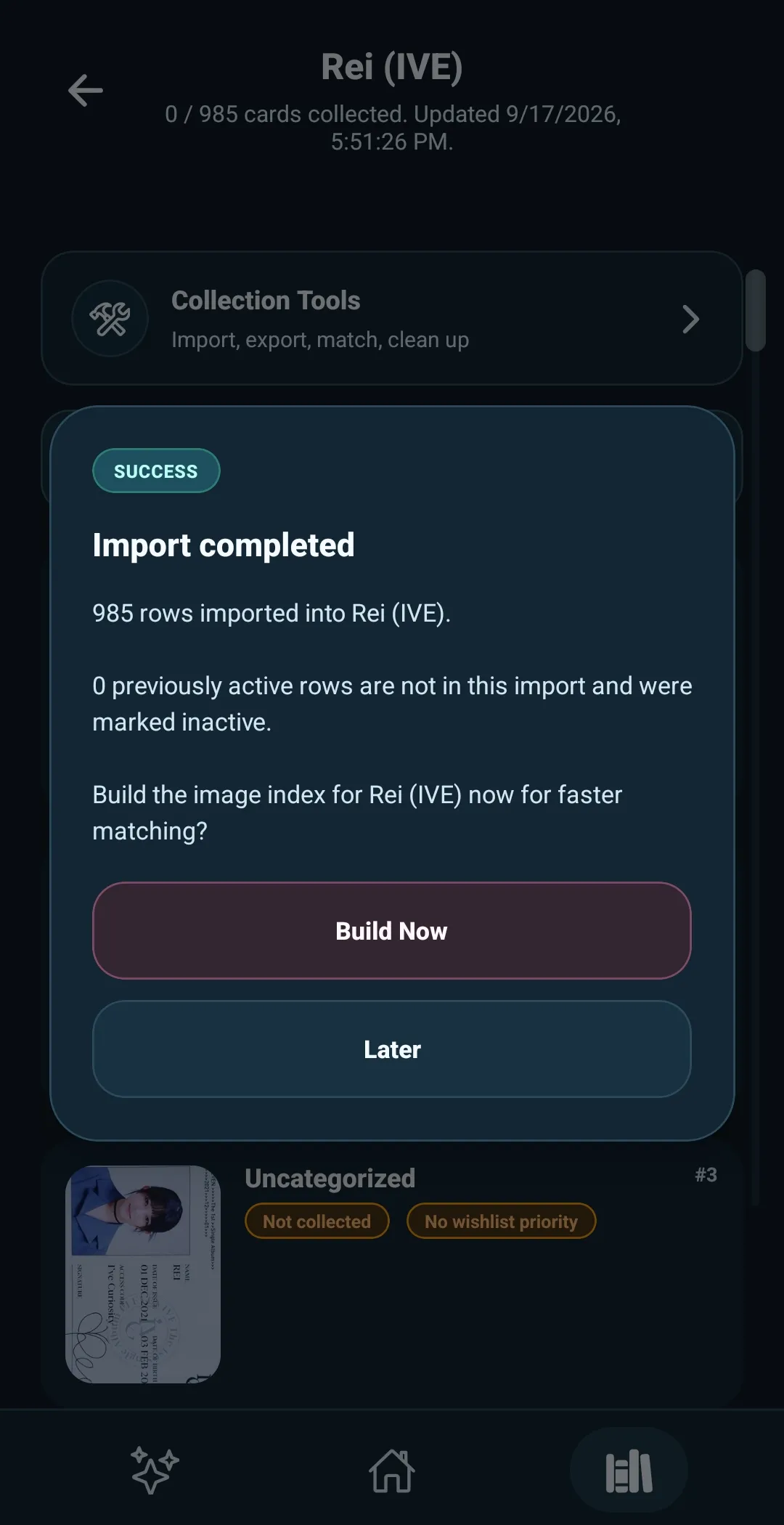
- When 5585 offers to build Rei’s image index for Image Matching, select Later.
Why choose Later? The image index is used by Image Matching to compare photos against Rei’s collection. It is not needed to view, organize, or track cards.
7. See your finished collection
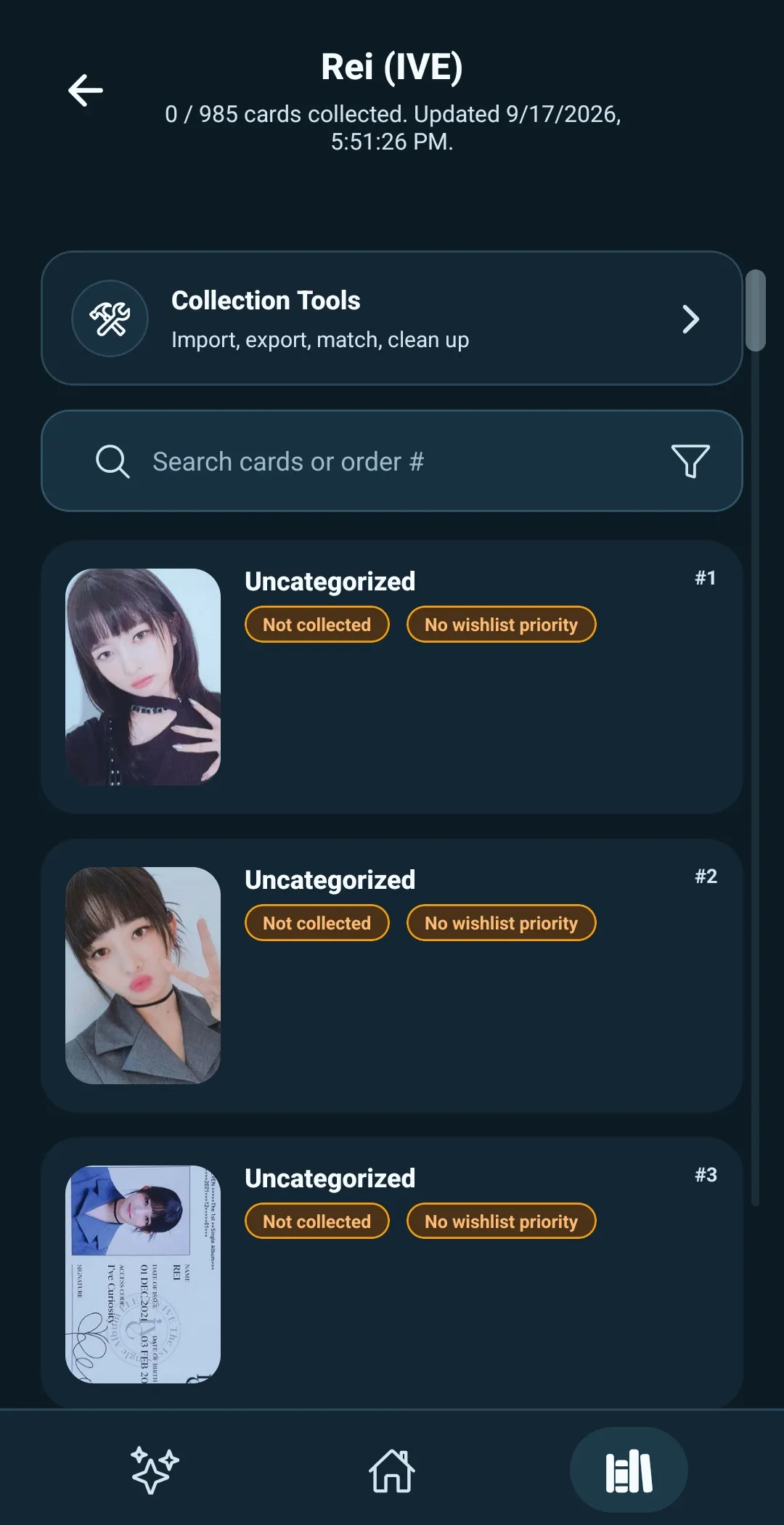
Rei opens with the cards from your template visible.
You’ve successfully created your first collection. It’s ready for you to track, organize, and make it your own.