
Find, Filter, Sort, and Use Favorites
On this page
Find collections
Use search, filters, sorting, and favorites to keep a growing library easy to browse.
These controls appear on My Collections and on each group page. The same sorting choice is used across both views.
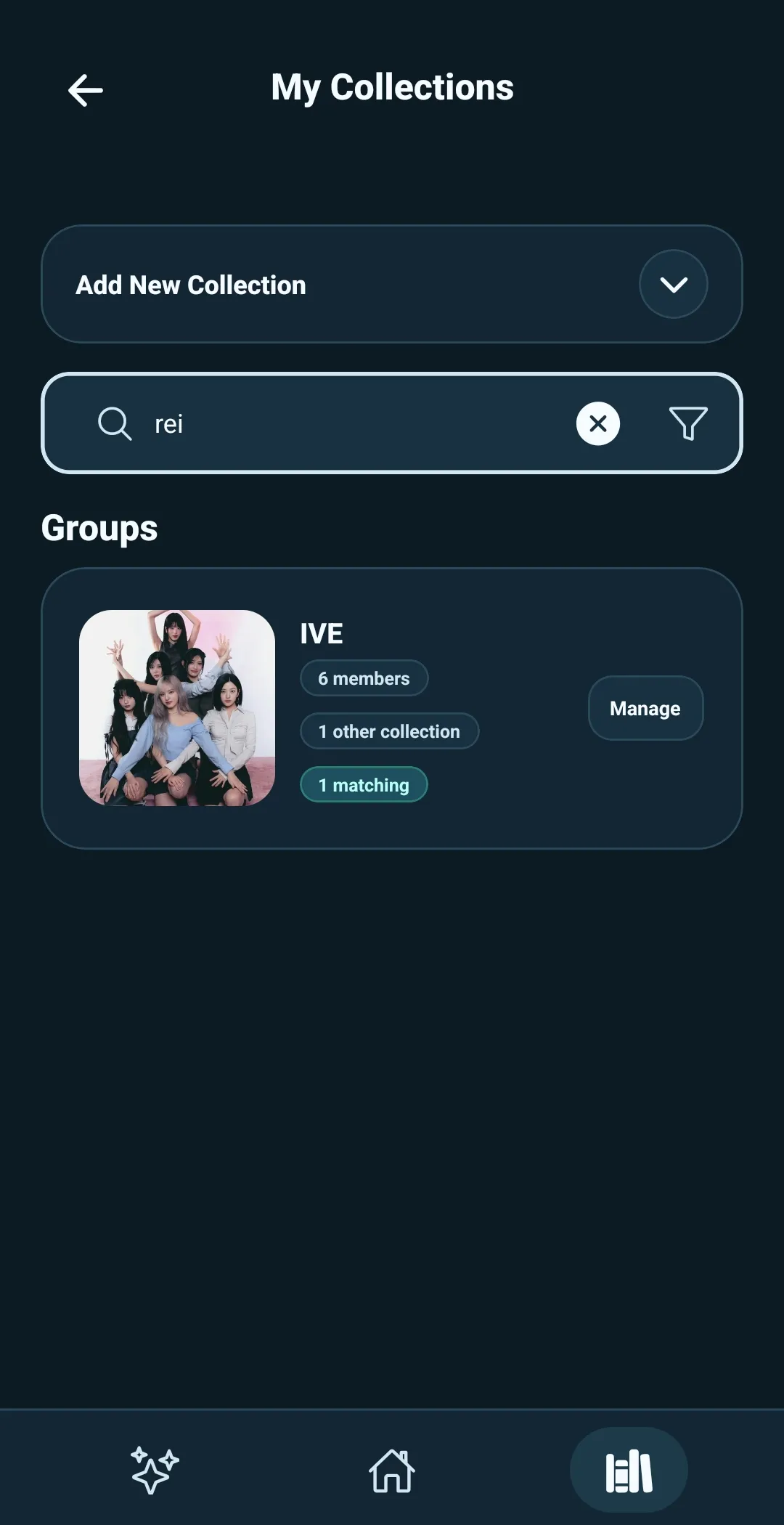
Search for a group or collection
On My Collections, use the search bar labeled Search by group or collection.
Search can find:
- A group name
- A member name
- An Other Collection name
For example, searching Rei finds the group that contains Rei. Searching
IVE finds the IVE group and its collections.
On a group page, the search bar narrows the list within that group.
Filter by collection type
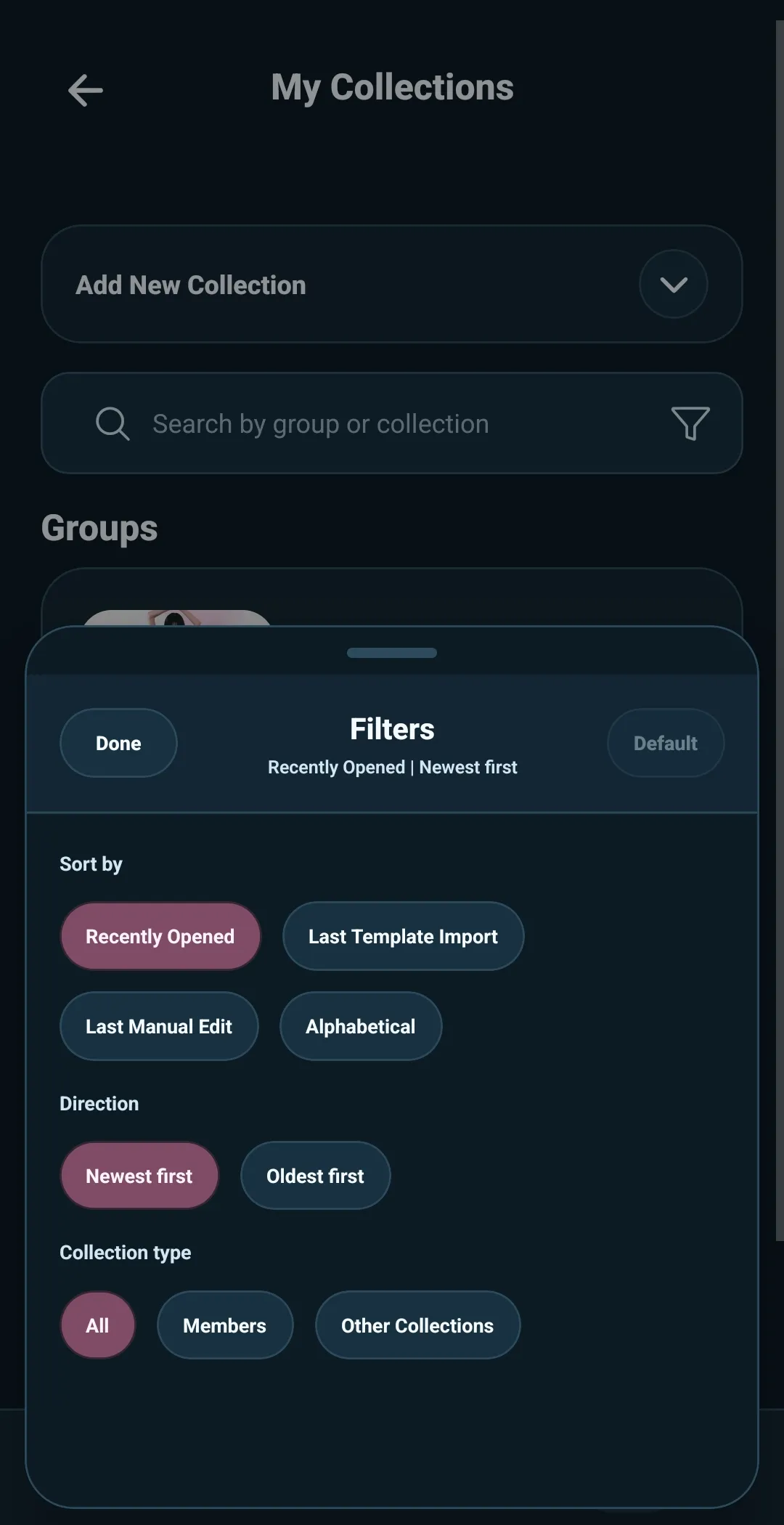
Select the filter button beside the search bar to open Filters.
Under Collection Type, choose:
- All — show Members and Other Collections
- Members — show only Member collections
- Other Collections — show only group-related collections such as unit cards, albums, or merch
Use this when you want to focus on one kind of collection without changing or hiding anything permanently.
On My Collections, a group appears only when it contains at least one collection that matches the selected Collection Type.
Choose a sort order
The Filters panel also controls how groups and collections are sorted.
Choose Sort by:
- Recently Opened
- Last Template Import
- Last Manual Edit
- Alphabetical
Then choose the direction:
- Newest first or Oldest first for activity-based sorts
- A–Z or Z–A for Alphabetical
The default is Recently Opened, with the newest activity first.
Select Default in the Filters panel whenever you want to return to the default sort, direction, and collection-type filter.
Use favorites
Favorites stay visible at the top of the places you browse.
- Favoriting a group places that group before non-favorite groups.
- Favoriting a member or Other Collection places it before non-favorites within its group.
- A group containing a favorite member or collection is also given priority over groups without favorites.
Use favorites for the groups and collections you return to most often—such as your bias member, an active trading collection, or the group you are currently organizing.
You can favorite or unfavorite groups and collections from their Manage menus.
There is no limit to how many groups, members, or Other Collections you can favorite. Favorites are your own organization tool, so use them in a way that keeps your most important collections easy to spot.
If something is not showing
If a group or collection does not appear where you expect, check the current search and filters first.
- Clear the search field to remove the current search term.
- Open Filters and select Default to restore the default sort, direction, and collection-type filter.
- Make sure Collection Type is set to All if you want to see both Members and Other Collections.
Search and filters only change what is currently visible; they do not remove or change a collection.
Member collections still appear before Other Collections on a group page, so the group remains easy to scan even when you change the sort order.