
Import Template Cards with CSV
On this page
Prepare your CSV
Use CSV import when the card list is already organized in a spreadsheet. It creates or revises template cards from structured card details, while keeping each card connected by its CardID.
Use these headers
Use the canonical headers below when preparing a file. Only CardID is required, but the remaining columns are how a CSV can describe a card and connect it to an image.
| Header | Required | What it does |
|---|---|---|
CardID |
Yes | The card’s stable identifier. Every row needs one, and no two rows can use the same value. Keep it unchanged when revising the same card later. |
Era |
No | The release, tour, campaign, or other era the card belongs to. |
EraYear |
No | A four-digit year that helps place the era in time. |
Source |
No | Where or how the card was available, such as a store, event, tour stop, fan club, or platform. |
CardType |
No | The kind of card, such as Album PC, POB, Lucky Draw, Benefit, Tour Merch, or Broadcast. |
Specifier |
No | The detail that separates a variation, such as a version, round, set, or pack. |
ImageFile |
No | The image filename or relative path to match in the image folder or ZIP you choose. |
5585 also accepts these alternative header names: Era / Release,
Era/Release, or Release for Era; Era Year for EraYear; Card Type
or Category for CardType; and Image File for ImageFile. Use the
canonical names above when making a new file so it stays easy to read and
reuse.
Example card rows
| CardID | Era | EraYear | Source | CardType | Specifier | ImageFile |
|---|---|---|---|---|---|---|
001 |
I'VE MINE |
2023 |
Apple Music |
Lucky Draw |
Digipack Round 2 |
ive-rei-001.jpg |
002 |
Secret |
2025 |
Withmuu |
Lucky Draw |
Round 3 Version A |
secret-002.jpg |
Save the file as CSV before importing. If you create or edit the rows in
Excel, Google Sheets, or another spreadsheet app, export or save the finished
sheet as a .csv file before selecting it in 5585. In Excel, choose CSV
UTF-8 (Comma delimited) (*.csv) when available. Do not select an .xlsx
workbook.
Import the CSV
- Open Template Builder, select Create New Template, and choose Start From CSV.
- Choose the CSV file. 5585 checks the headers, makes sure every row has a CardID, and makes sure CardIDs are not repeated.
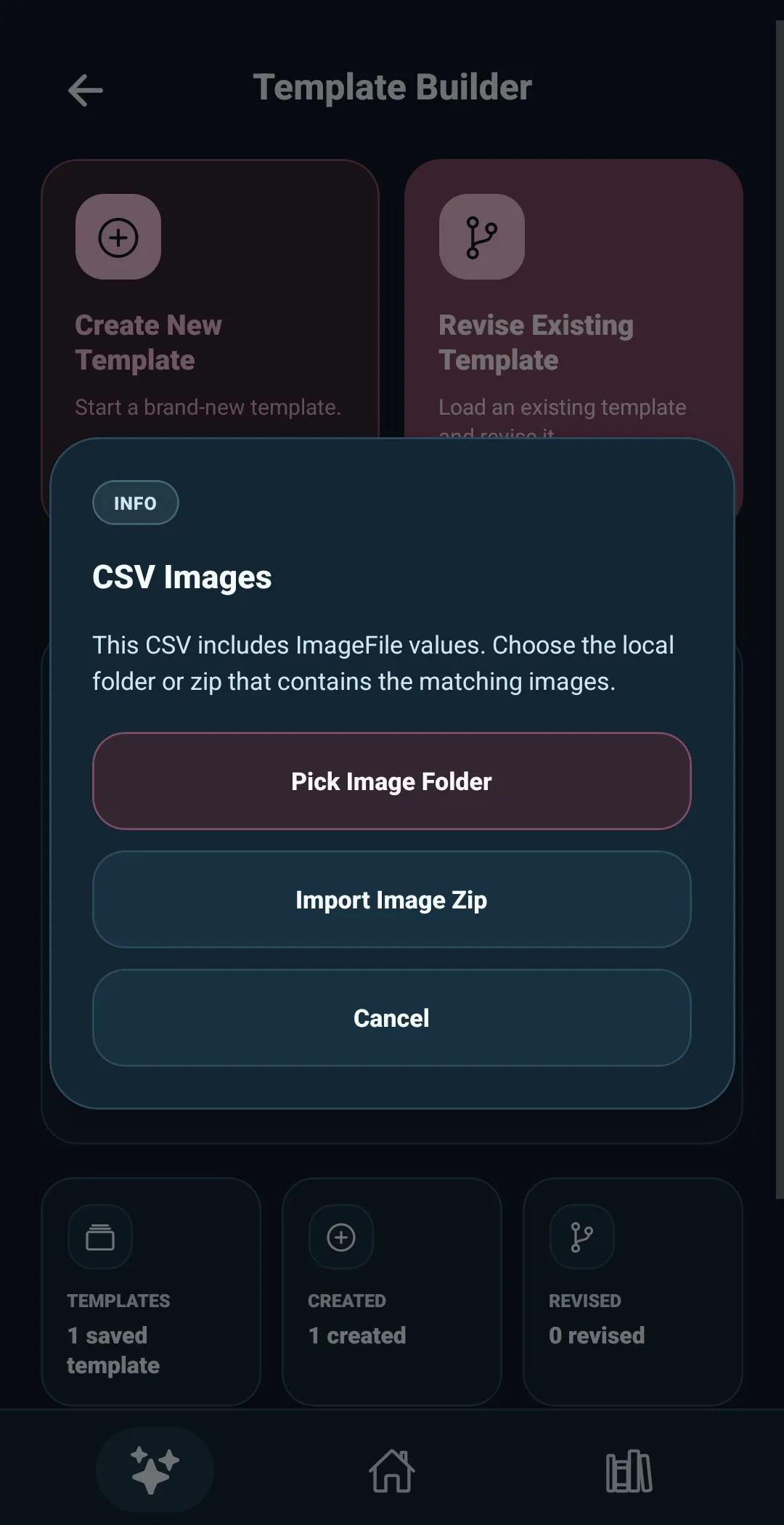
- If the file includes any
ImageFilevalues, choose Pick Image Folder or Import Image Zip. Select the folder or ZIP that contains those images. - 5585 matches image names without regard to capitalization. You can use a
filename such as
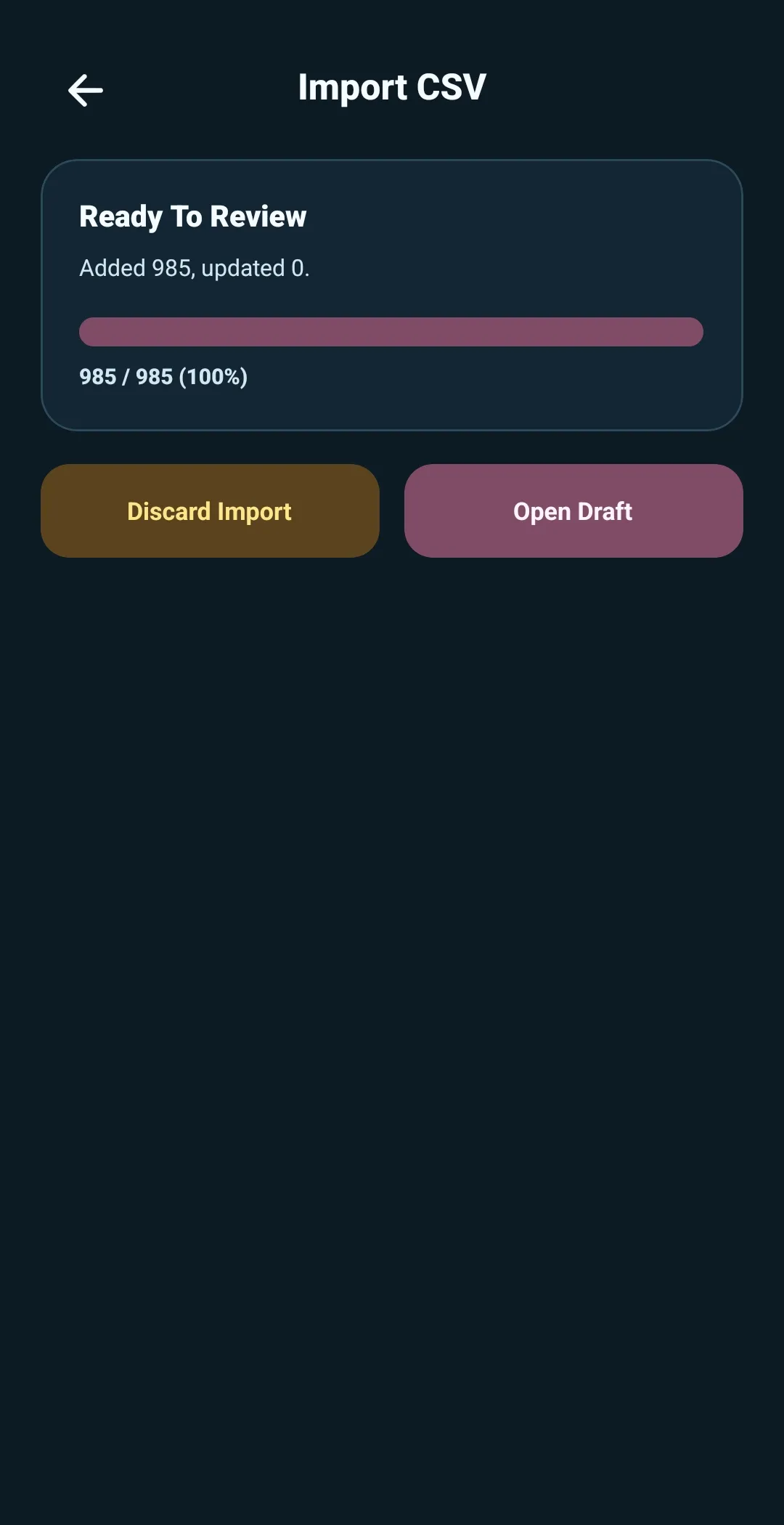
ive-rei-001.jpg, or a relative path such asive-mine/ive-rei-001.jpgwhen the chosen folder has subfolders. Image URLs are not used by this workflow. - Watch the import progress while 5585 resolves images, builds the cards, and prepares thumbnails. When it is ready, select Open Draft to review the result in Template Builder.
Starting a new template
The imported cards open in the Template Builder editor first so you can confirm that the CSV worked. Then open Template Setup and add the template name, group name, and collection name before saving, exporting, or updating a collection.
An ImageFile is optional as a column, but a newly created card still needs
an image before it can be exported or used to update a collection. If an image
cannot be found, 5585 keeps that row in the draft and lists the issue so you
can fix it instead of silently losing the card.
Revising an existing template
Use the same CSV workflow after opening a saved template. A row with an existing CardID updates that card; a new CardID adds a new card. The rows in the CSV become the card order for the imported cards.
If an optional metadata header is not present, 5585 leaves that detail on an
existing card unchanged. If the header is present and a cell is blank, that
blank value is applied. If ImageFile is not provided for an existing card,
its current image stays in place; a resolved ImageFile replaces it.
If active cards in the template do not appear in the CSV, 5585 asks whether to Keep Active or Deactivate Missing. Choose Keep Active when the CSV is only a partial update. Choose Deactivate Missing only when the CSV is meant to replace the active card list.
After reviewing the draft, continue editing as needed, then use Save Template, Export Template, or Update Collection.