
Back Up and Restore 5585
On this page
Overview
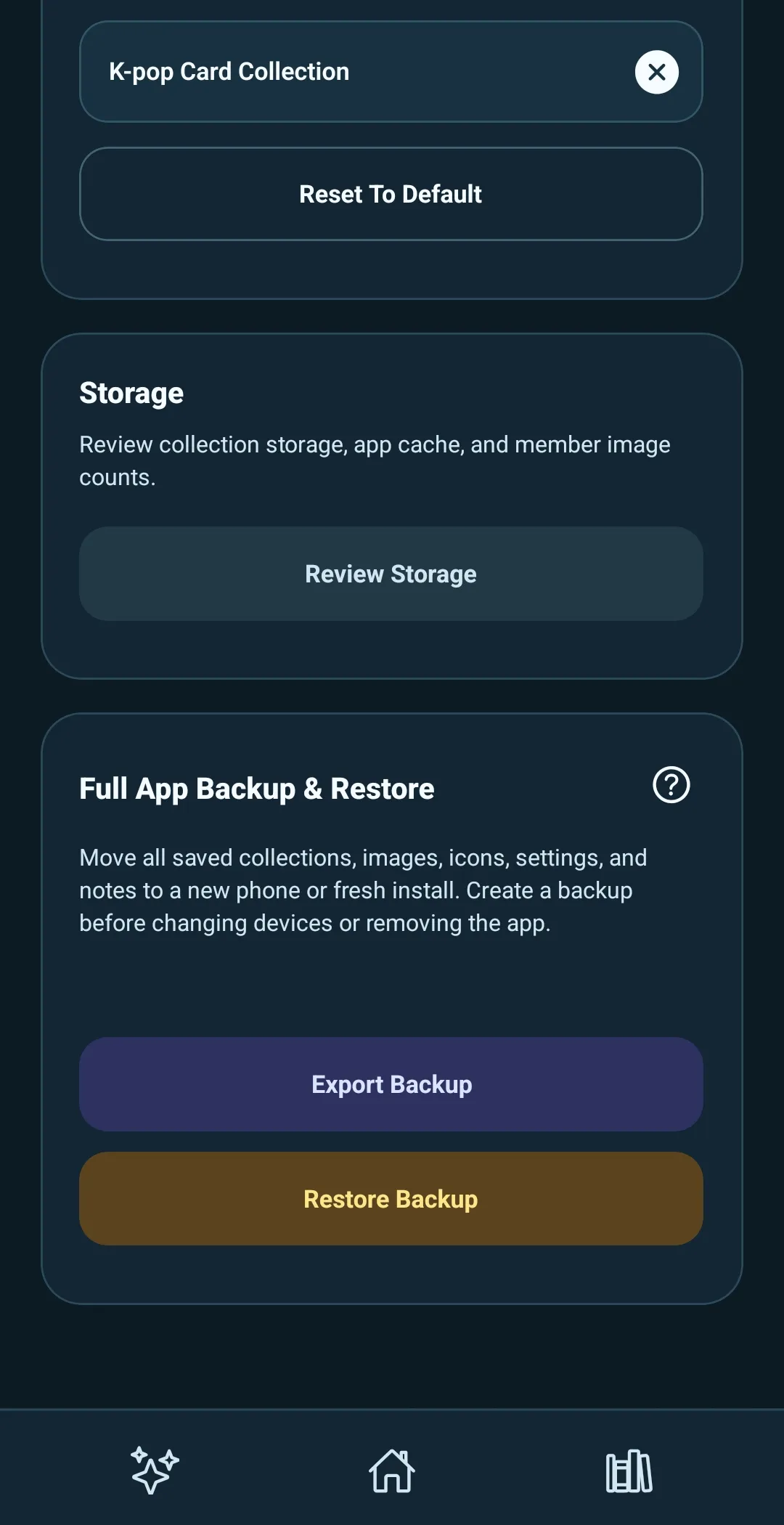
Use Full App Backup & Restore in Settings to protect everything you have saved in 5585 before changing phones, reinstalling the app, or doing anything that could remove its local data.
A full backup is a ZIP archive of your saved 5585 data, including collections, cards or items, images, group and collection images, saved templates, settings, notes, collection status, and wishlist priority.
Create a backup
- Open Settings from the gear icon on Home.
- Under Full App Backup & Restore, select Export Backup.
- If you have a Creator Proof identity, choose whether to include it.
- Choose where to save the backup from the native share or save options.
- Keep 5585 open while the backup is prepared.
On Android, use the share sheet to save the backup to your phone, Google Drive, OneDrive, or another storage provider.
If there is no saved collection, template, Creator Proof identity, or customized setting yet, 5585 lets you know that there is no saved data to back up.
Protect Creator Proof when needed
If you have exported a signed template before, 5585 can include your Creator Proof identity in the backup.
Choose Include Creator Proof if you want future template exports on the new device to continue using the same Creator Proof identity. You will create a password that protects that identity in this backup file.
- The password is specific to this backup and is not saved by 5585.
- You need the exact password to restore the Creator Proof identity later.
- Choose Skip if you only want to back up your normal app data.
Creator Proof is password-protected. Other backup contents are not encrypted.
Treat every full backup as private because it can contain your images, notes, and collection data. Do not share a backup that includes your Creator Proof identity—or its password—unless you want another person to be able to export templates with that same identity.
Restore on a new phone or fresh install
Restore is intended for a fresh install or new phone. It is not a merge tool for an app that already contains a collection library.
- Install and open 5585 on the new phone or fresh install.
- Open Settings.
- Select Restore Backup.
- Choose the backup ZIP.
- 5585 reads and validates the selected backup before replacing any app data.
- If saved collections, templates, settings, or Creator Proof already exist on the device, review the warning and select Replace Saved Data and Restore if you intend to replace them.
- Keep 5585 open while it restores and verifies the backup.
5585 checks the selected archive before making it active.
If the device only has customized preferences, 5585 warns that the backup will replace those preferences. Select Replace Preferences and Restore only when that is what you intend.
If the device already has collections, saved templates, or a Creator Proof identity, 5585 warns that the backup will replace the saved app data. Select Replace Saved Data and Restore only when that is what you intend. 5585 protects the current app files for rollback if the restore fails.
After the replacement decision, if the backup includes protected Creator Proof data, choose one of these options:
- Restore Creator Proof and enter the backup password.
- Skip Creator Proof to restore the normal app data without that identity.
- Cancel Restore to leave the app unchanged.
If the password is incorrect, you can try again or skip Creator Proof and continue restoring the normal backup data.
Finish after restoring
After restoring, 5585 verifies the restored data and repairs local image paths.
If any Image Matching indexes are incomplete, 5585 offers to rebuild them. Choose Rebuild Now to prepare Image Matching, or Not Now to do it later from Collection Tools.