
Add and Review Template Cards
On this page
Choose an image source
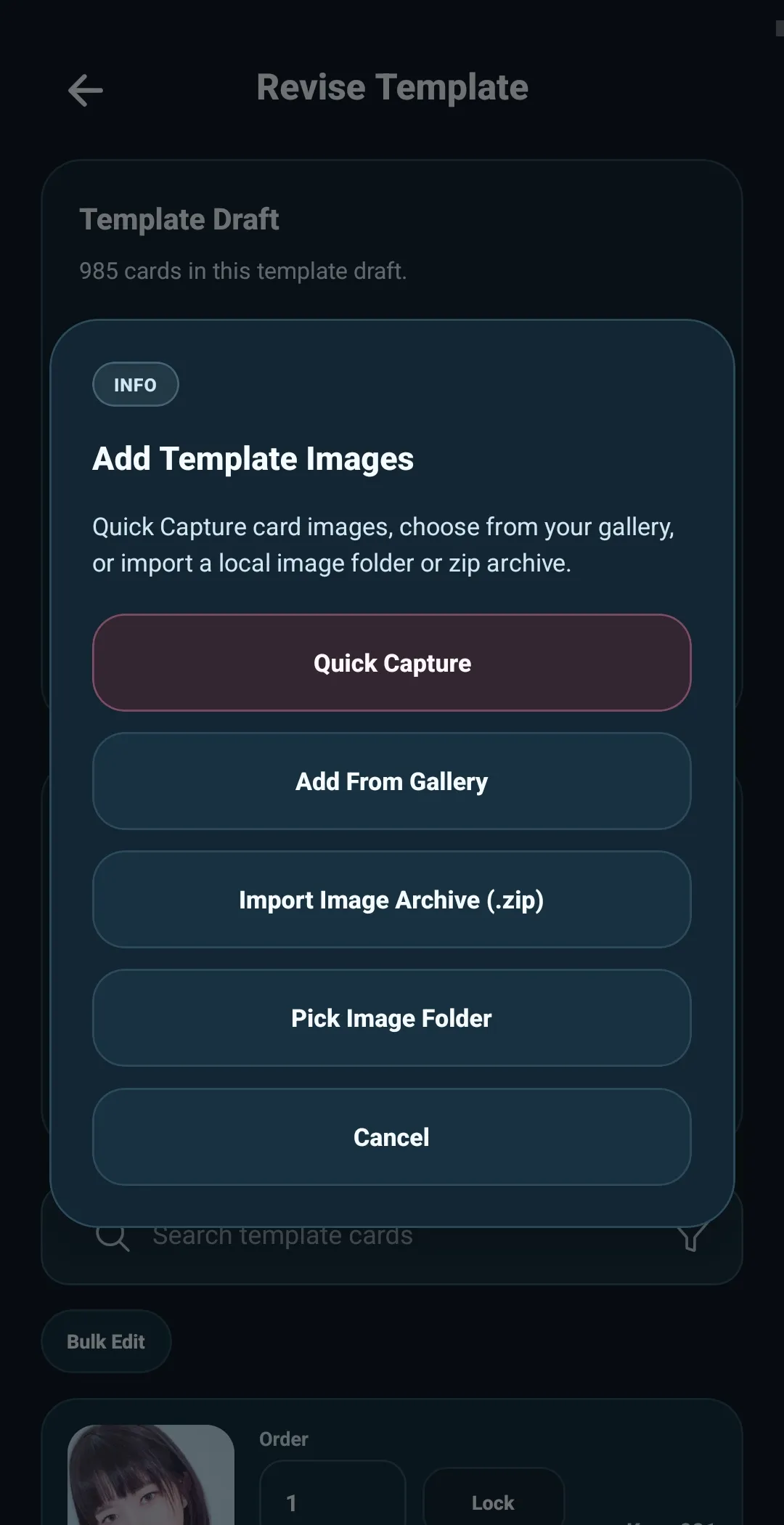
Use Add Cards when you have card images ready to bring into a template. It opens a choice of image sources:
- Quick Capture — take card images as you work
- Add From Gallery — choose images already on your device
- Import Image Archive (.zip) — bring in a ZIP containing card images
- Pick Image Folder — bring in images from a device folder
Choose the source that fits where your images are stored. All four paths lead to Review Added Cards before anything is added to the template.
Use Quick Capture for a batch
Quick Capture lets you photograph card images directly into a new template batch. The counter shows how many images are in the current session, with a limit of 100. Use Undo Last if needed, then select Review to continue to Review Added Cards.
Choose and review images
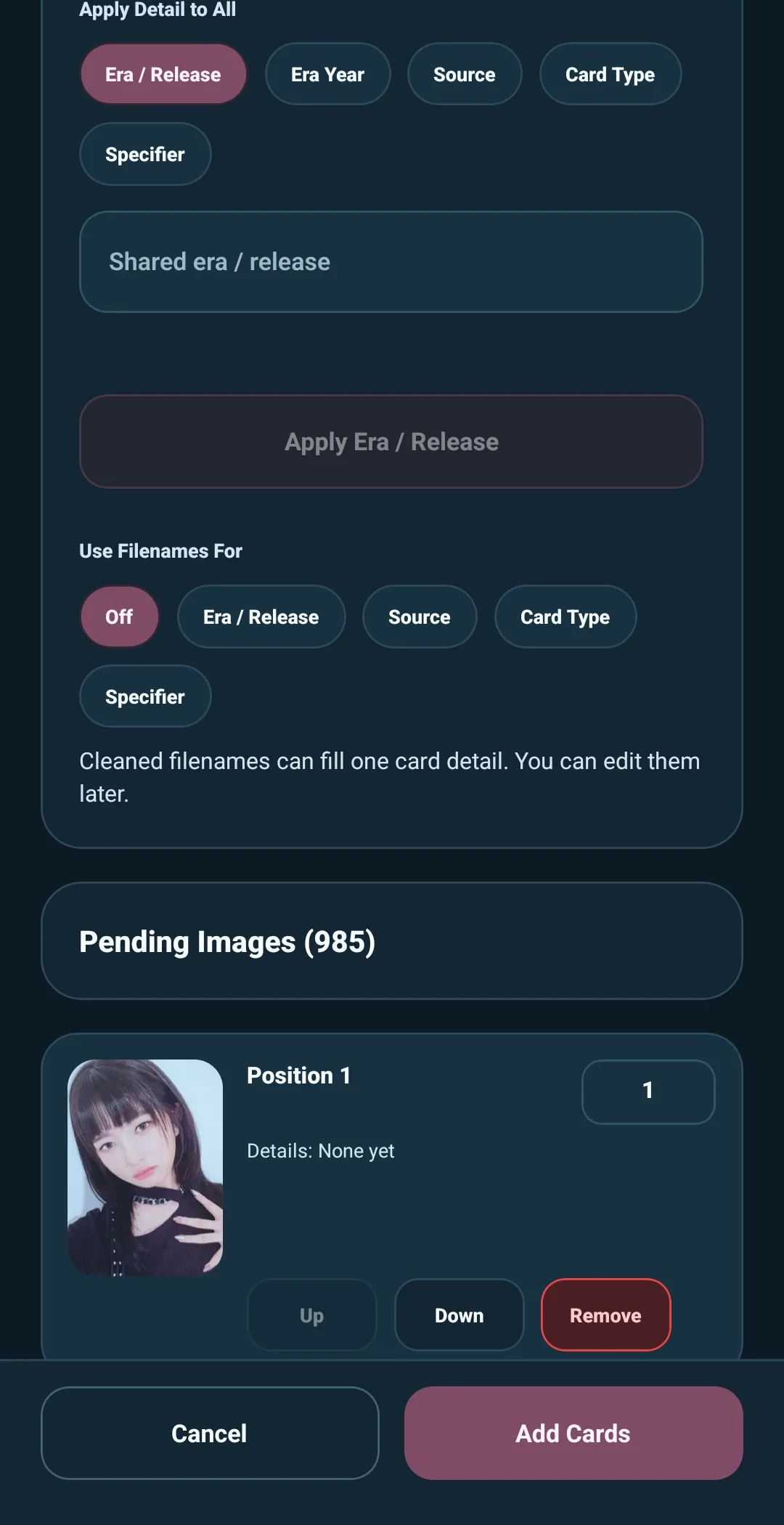
The cards you choose are still a temporary batch on the Review Added Cards screen. This is a chance to check them before they become part of the template.
For every pending card, you can:
- View the image
- Change its position with the order controls
- Remove it from the pending batch
Removing a card here happens immediately. The batch has not been added to the template yet, so this screen favors quick cleanup before you continue.
When the images look right, select Add Cards to add the batch to the Template Builder editor.
Add cards in useful batches
If several cards share the same details, add them together. For example, you might add all cards from one album, store event, or Lucky Draw round as one batch.
On Review Added Cards, choose the detail you want to apply, enter its value, and select Apply. That value is added to every card you selected in the batch.
For example:
- Choose Era/Release.
- Enter
I'VE MINE. - Select Apply.
Every selected pending card receives I'VE MINE as its Era/Release.
You can also use a card’s filename to fill a chosen detail when your image files are already named consistently. This can save time when filenames include useful information such as an album, release, or card variation.
Batch details are optional. You can leave the review screen simple and add the cards first, then make individual or larger changes from the Template Builder editor.
After the cards are added
Once you select Add Cards, the batch becomes part of the template. From the Template Builder editor, you can continue with the more detailed work:
- Edit an individual card’s details or image
- Arrange or lock card positions
- Search the card list
- Use Bulk Edit for changes across cards already in the template
Use Review Added Cards to prepare a new batch. Use Bulk Edit to maintain a card list after it already exists.