
Review and Clean Up Storage
On this page
Overview
Use Storage in Settings when you want to understand how 5585 is using space on your phone or safely remove files the app can recreate.
Open Settings from the gear icon on Home, then select Review Storage.
Understand the Storage overview
The Storage overview separates saved app data from phone cache.
- Saved app data includes your collections, cards or items, images, group and collection images, templates, Settings, and other saved 5585 files.
- Phone cache includes temporary files, cached previews, picker data, and library-managed files.
- Temporary files and Other cache help explain what is inside the phone-cache total.
- Image Library shows shared card artwork saved by 5585.
- Collections and Templates show counts and storage details for those parts of the app.
Phone Settings may describe the app’s storage differently. The Storage screen reports the files 5585 can measure; it does not claim to show the full installed size of the app.
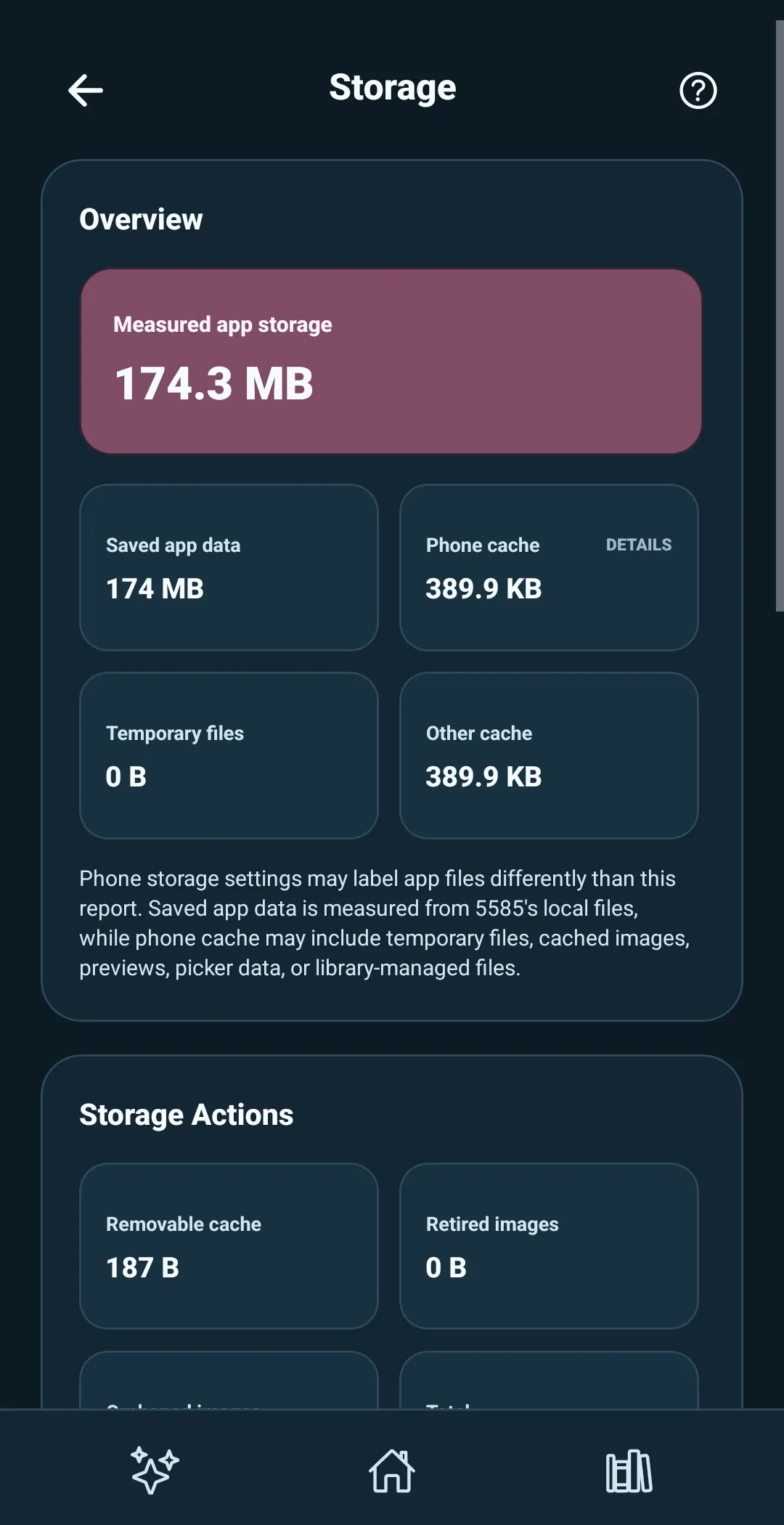
Select a Details label to look more closely at Phone Cache, Collections, or saved Templates.
Clean up safe-to-remove storage
Under Storage Actions, 5585 shows space that can be safely reclaimed:
- Removable cache — temporary and rebuildable cache files.
- Retired images — local image folders no longer needed by an active collection.
- Orphaned images — Image Library files that are no longer used by a saved template or collection.
Select Clean Up Storage to remove all three. 5585 reports what it removed when cleanup finishes.
Clean Up Storage does not remove active collections, cards or items, source images, saved templates, personal notes, collection status, or wishlist priority.
Select Refresh to recalculate the storage amounts after cleanup or after making changes elsewhere in the app.
Review Phone Cache
Select Phone cache from the Storage overview to open Cache Details.
Cache Details shows the largest visible cache areas and the portion that Clear Cache can safely remove. This can include temporary workflow files, cached image previews, picker cache, sharing cache, and image-processing cache.
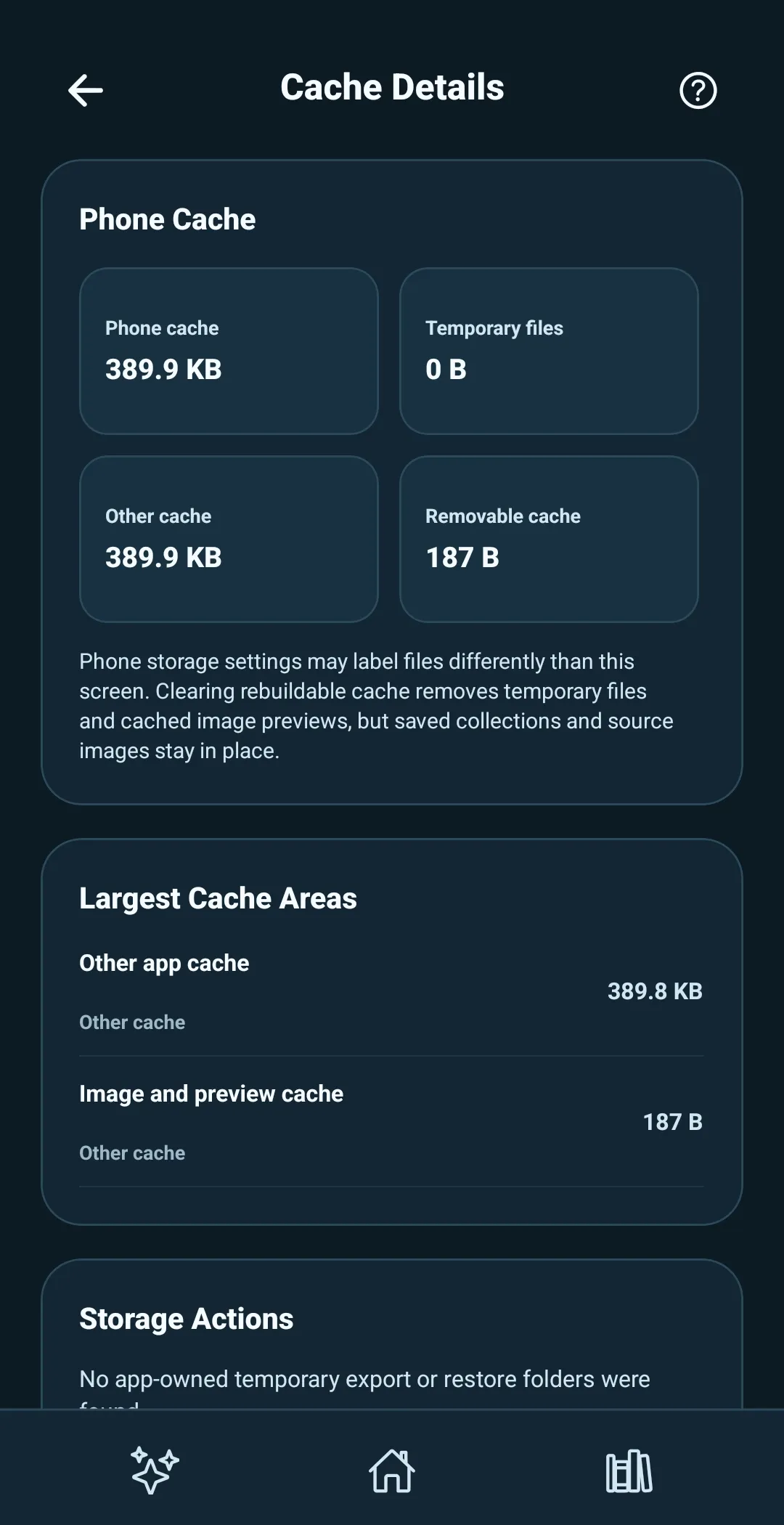
Select Clear Cache to remove rebuildable cache files. Your saved collections and source images remain in place.
Use Clean Up Storage when you want the complete safe cleanup. Use Clear Cache when you only want to clear temporary phone-cache files.