
Create and Navigate Collections
On this page
Start in My Collections
Open My Collections by selecting the books icon labeled My Collections.
This is the starting point for every group and collection you track. From here, you can create a collection, search later for a group or collection, and open the groups you already have.
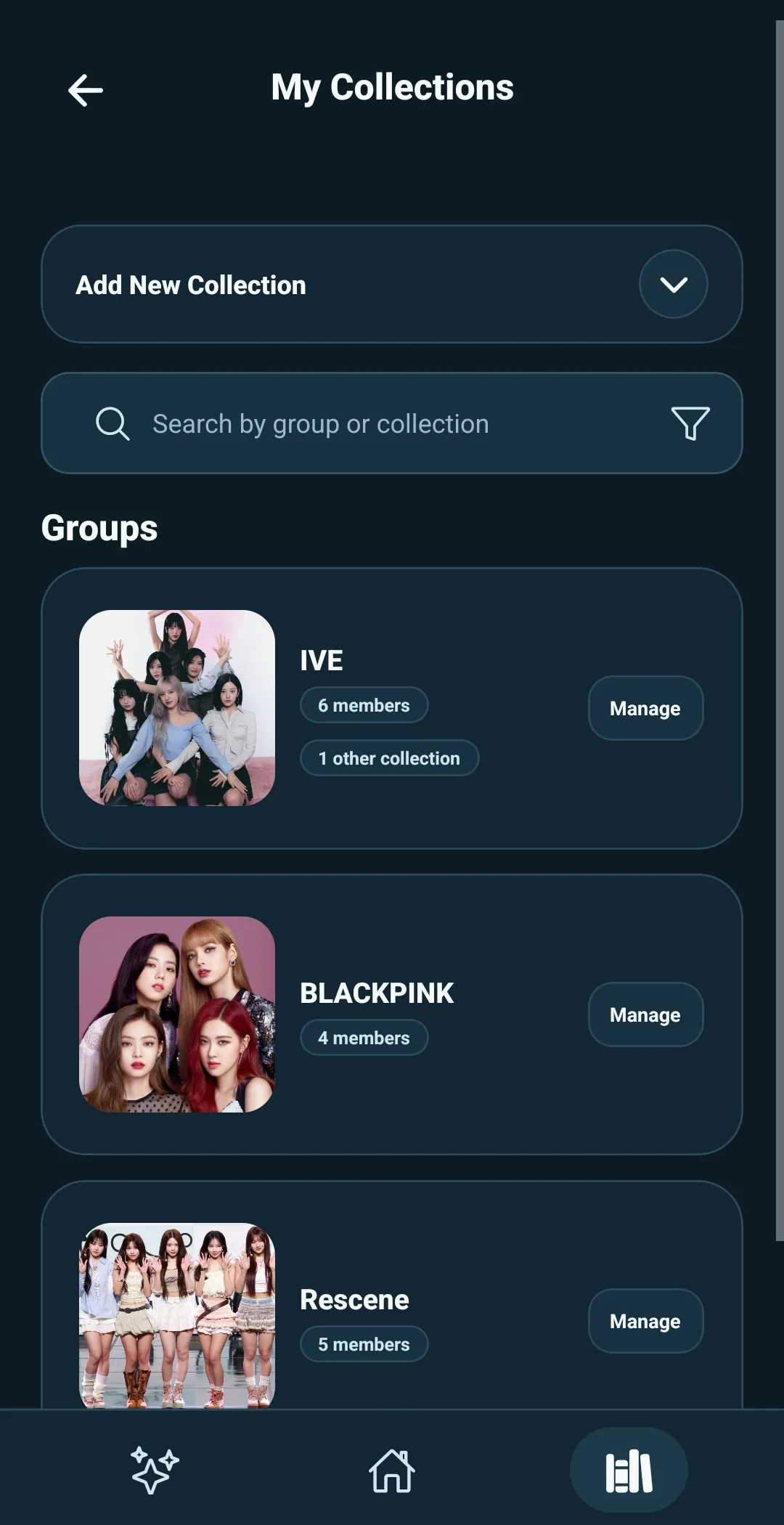
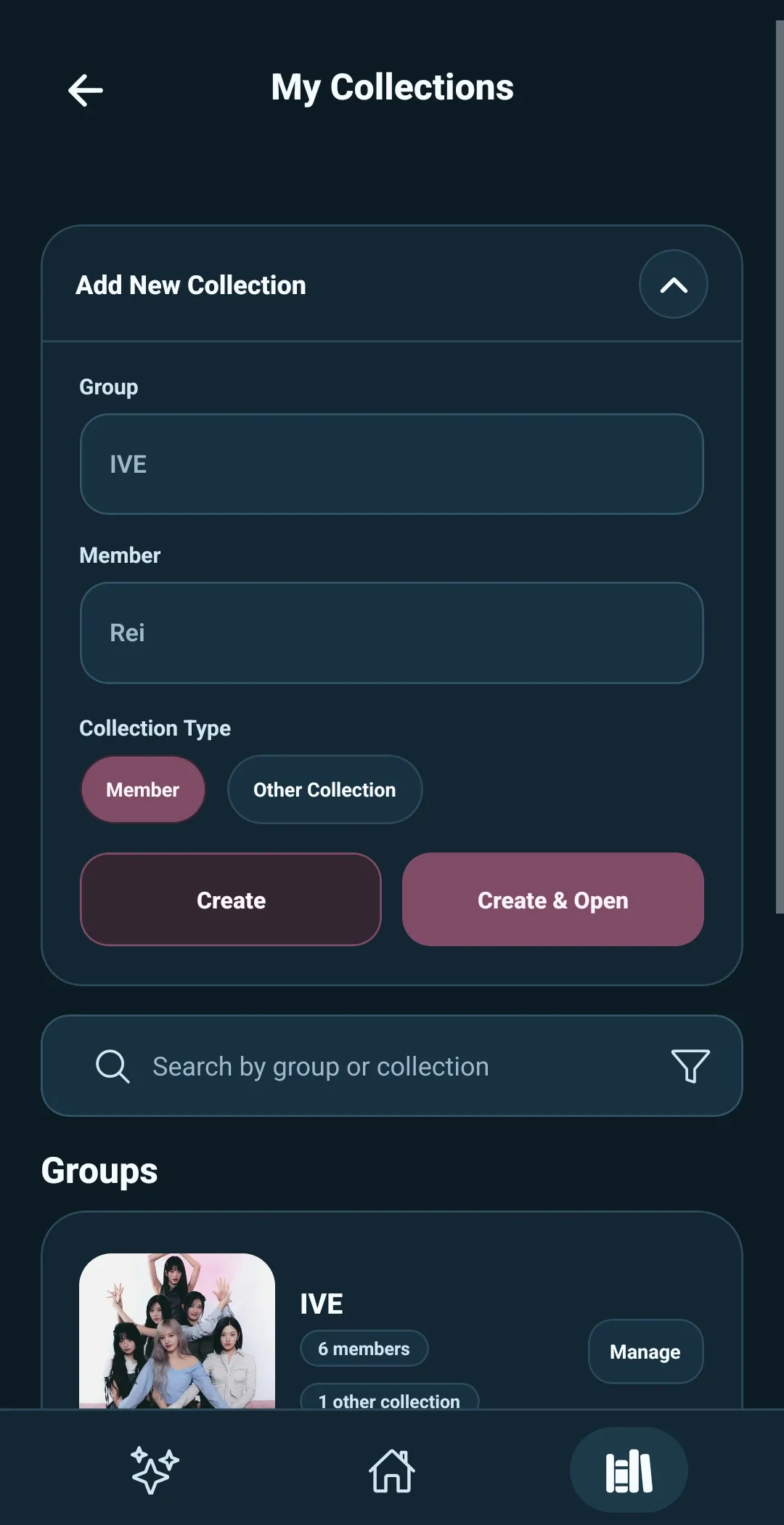
Create a collection
Select Add New Collection to expand the creation form.
- Enter the group name in Group.
- Choose the collection type:
- Member for cards that belong to one person in a group
- Other Collection for group-related cards that are not about one individual member
- Enter the second name:
- For a Member collection, enter the person’s name in Member.
- For an Other Collection, enter the collection’s name in Collection Name.
- Select Create or Create and Open.
For example, you could create a Member collection with IVE as the group and
Rei as the member. You could create an Other Collection for IVE unit
photocards, albums, or other merch.
- Create saves the collection and keeps you on My Collections.
- Create and Open saves the collection and opens it immediately.
Understand the group list
Every group appears as a card under Groups.
A group card includes:
- A group image area labeled Hold to Add Image
- The group name
- A Member count, including when the count is zero
- An Other Collection count when the group has at least one
- A Manage button
Use Manage to rename the group, create another collection in it, favorite the group, or change its image.
Select the group card itself to open its group page.
Browse a group
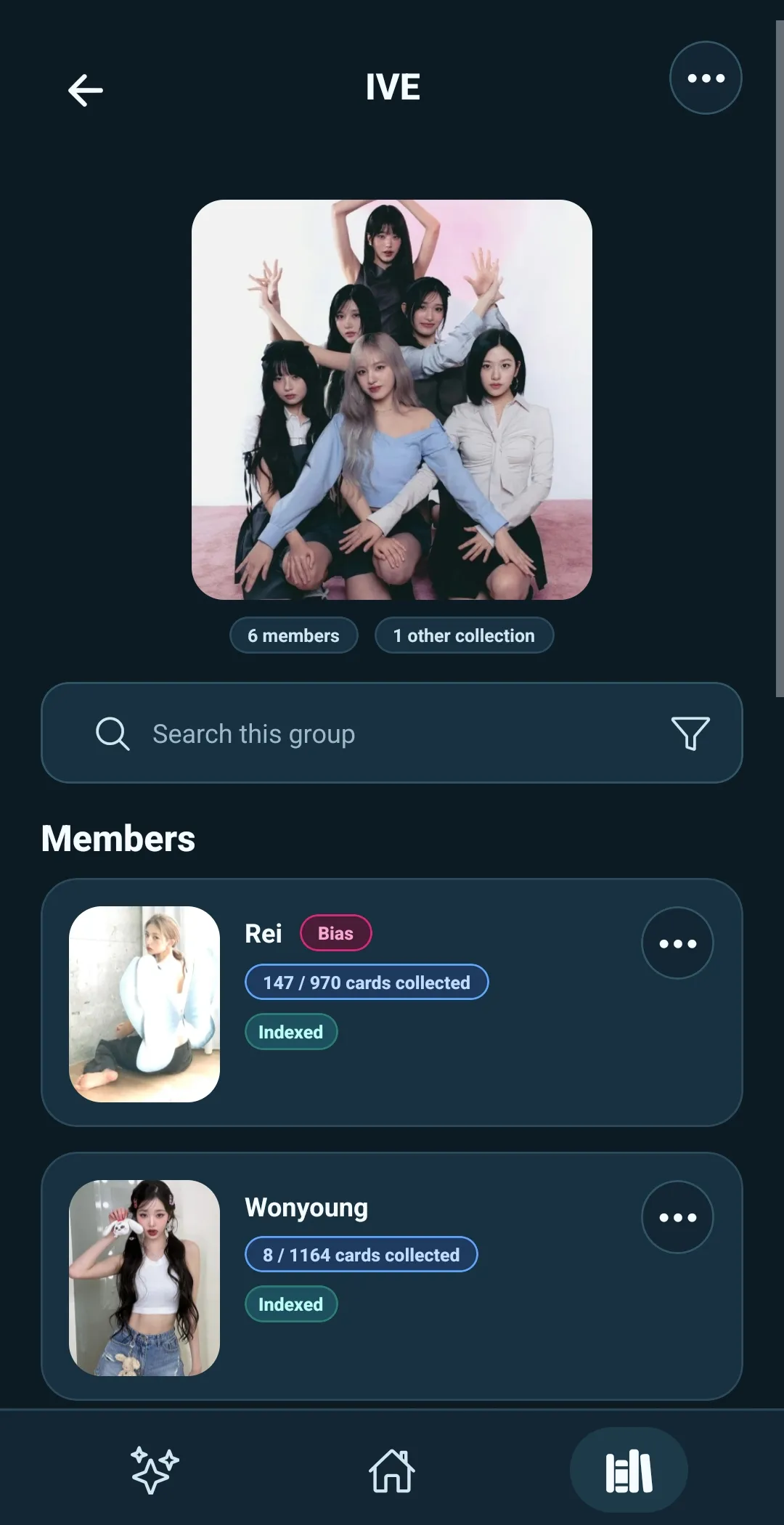
The group page keeps the collections for one group together.
Hold the group image or select the top-right three dots to manage the group. The page also includes search and filters for finding collections within that group.
Members appear first in the list. Other Collections appear after them.
Each collection card can show:
- Its image area
- Collected-card information
- Image Matching index status, when relevant
- Bias status, when relevant
Select a collection card to open it.
Open a collection
A collection page is where you see the cards you are tracking.
The subheader shows the collection information. Below it, you will find:
- Collection Tools
- Search and filters
- The complete card list
Cards show their image and at-a-glance information as badges or text. Select a card to open its Card Details page.
From here, you can continue into card tracking, Collection Tools, or Image Matching when you are ready.