
Manage Groups and Collections
On this page
Overview
Use the Manage menus to keep your library organized as your collection grows.
These tools change the names, images, type, and placement of groups and collections. They do not replace the card-list tools inside a collection.
Manage a group
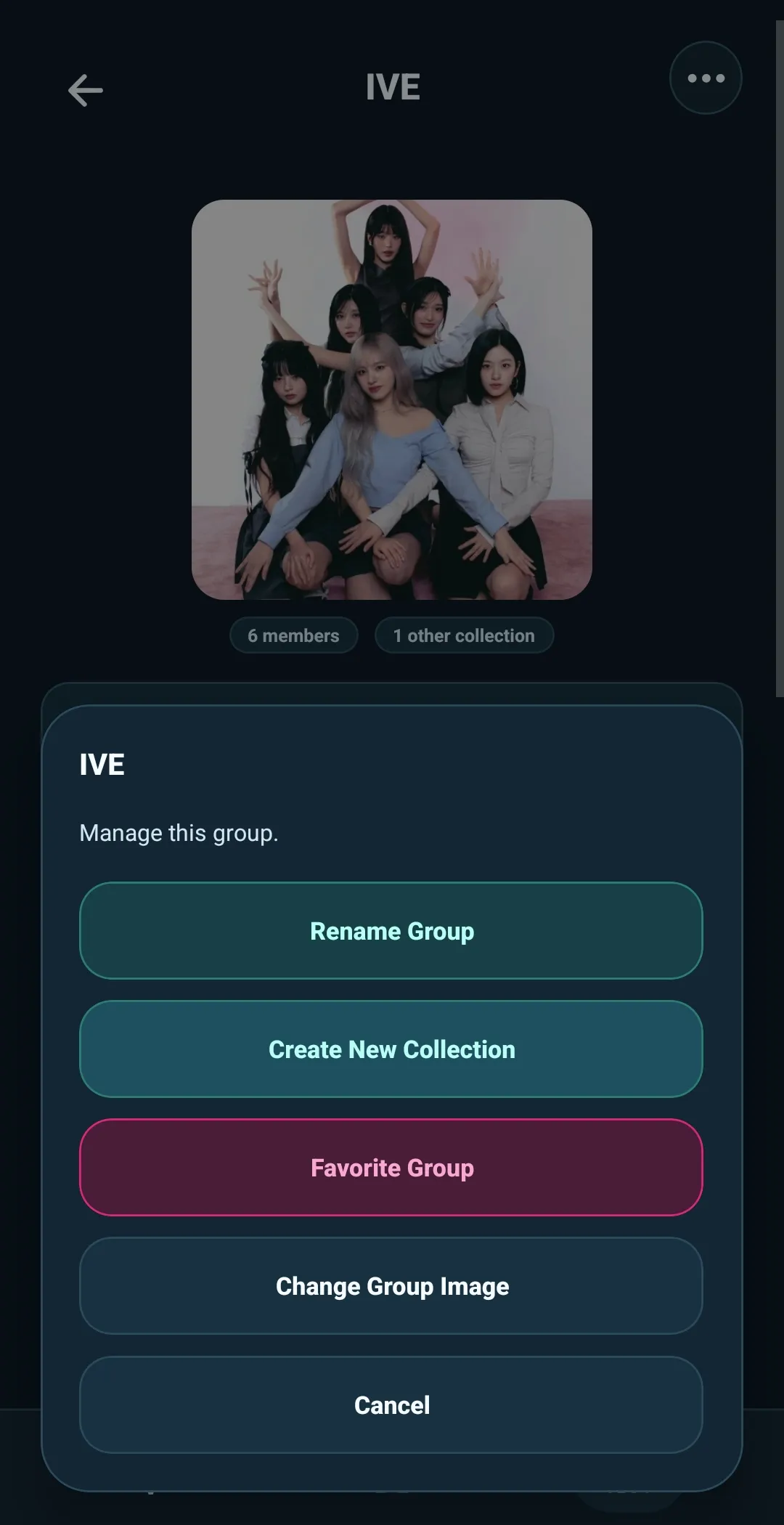
On My Collections, select Manage on a group card. You can also open the group page and select the top-right three dots. Both open the same group Manage menu.
The menu includes:
- Rename Group
- Create New Collection
- Favorite Group or Unfavorite Group
- Change Group Image
Rename a group
Select Rename Group to enter a new group name.
Renaming updates the group without merging it into another existing group. If the name you enter already belongs to a different group, choose a different name instead.
If Image Matching is currently building an image index for a collection in that group, wait for indexing to finish before renaming the group.
Add another collection to a group
Select Create New Collection from the group Manage menu to open the creation form with that group already selected.
Choose Member or Other Collection, enter the second name, and select Create or Create and Open.
This is the quickest way to add another member, unit collection, album collection, or merch collection without typing the group name again.
Favorite a group or change its image
Select Favorite Group to mark a group as a favorite. The same action becomes Unfavorite Group when it is already favorited.
Select Change Group Image to choose a new image for the group. You can also hold the group image area on the group page.
Favoriting and images help you recognize the groups you return to most often. They do not change the collections or cards inside the group.
Manage a collection
Open a group, then select Manage on the member or Other Collection you want to change.
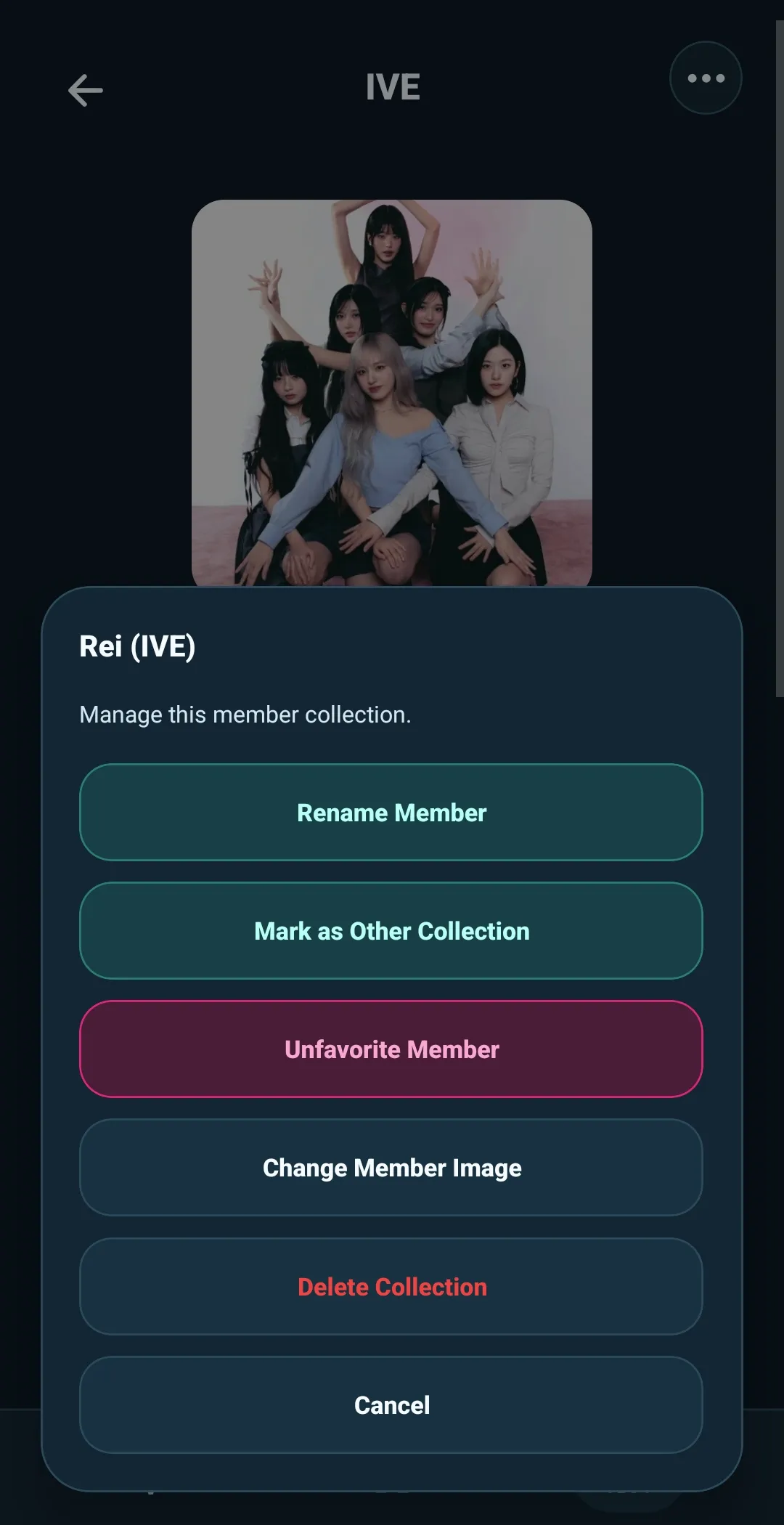
The menu changes its wording to match the collection type.
For a Member collection, you can:
- Rename Member
- Mark as Other Collection
- Favorite Member or Unfavorite Member
- Change Member Image
- Delete Collection
For an Other Collection, you can:
- Rename Collection
- Mark as Member
- Favorite Collection or Unfavorite Collection
- Change Collection Image
- Delete Collection
Change a collection type
Select Mark as Other Collection when a collection belongs to the group but is not about one individual member. Select Mark as Member to change it back.
Changing the type updates how the collection is labeled and where it appears on the group page. The collection itself remains available.
Delete a collection carefully
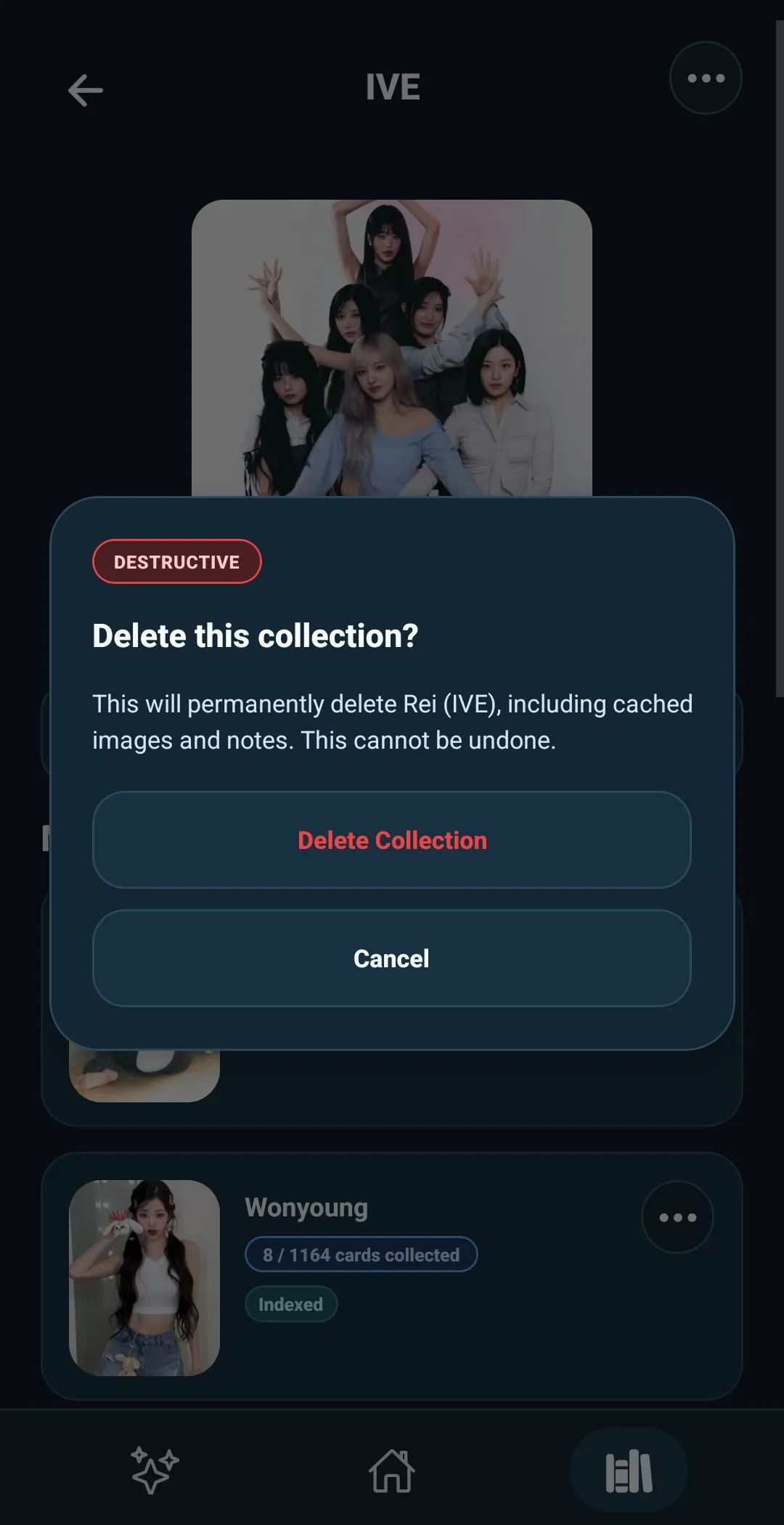
Select Delete Collection only when you are sure the collection is no longer needed.
5585 asks for confirmation and explains that deleting a collection permanently removes that collection, including its cached images and notes. This cannot be undone.
Use renaming, favoriting, images, and type changes to organize a collection you still want to keep. Use deletion only when you intend to remove the collection completely.