
Search and Bulk Edit Template Cards
On this page
Overview
As a template grows, you do not need to find and edit every card one at a time. Use search and filters to narrow the card list, then use Bulk Edit to make a shared change across the right group of cards.
Search the card list
The search field is broad by default. It can find cards by their:
- Order number
- CardID
- Card name
- Era/Release
- Era Year
- Source
- Card Type
- Specifier
For example, searching Apple Music can find every card with that source.
Searching 2023 can find cards with that Era Year.
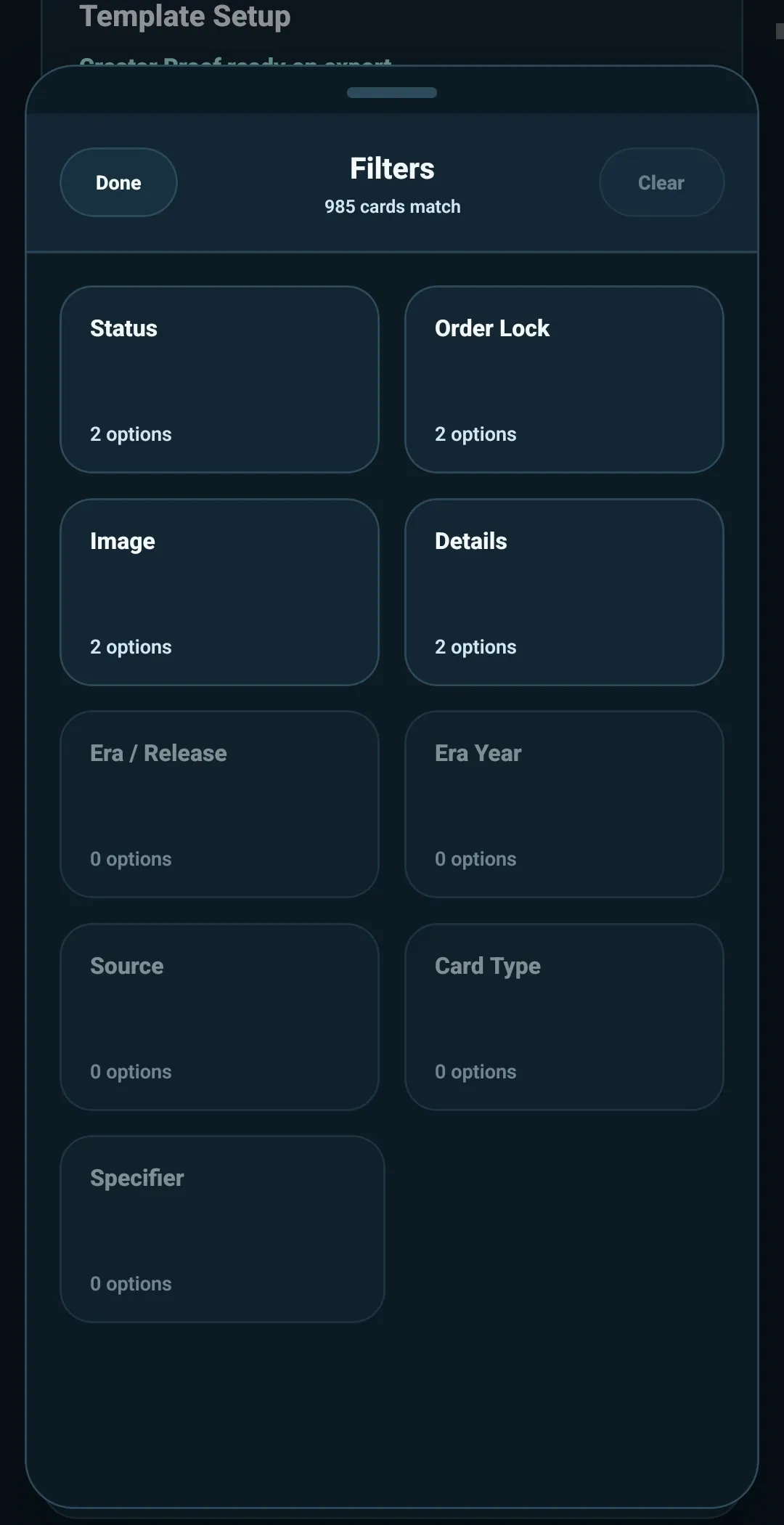
Narrow the results with filters
Filters help you focus the search further. You can filter cards by:
- Status — active or inactive
- Order — locked or unlocked
- Image — has an image or is missing an image
- Details — complete details or missing details
- Era/Release
- Era Year
- Source
- Card Type
- Specifier
The detail filters include their own search, so you can find the value you want quickly. You can select more than one value and choose whether to include or exclude those values.
A simple pattern is to search broadly first, then use filters to narrow the result to exactly the cards you want to work with.
Choose the right Bulk Edit scope
Select Bulk Edit after you have searched or filtered the card list.
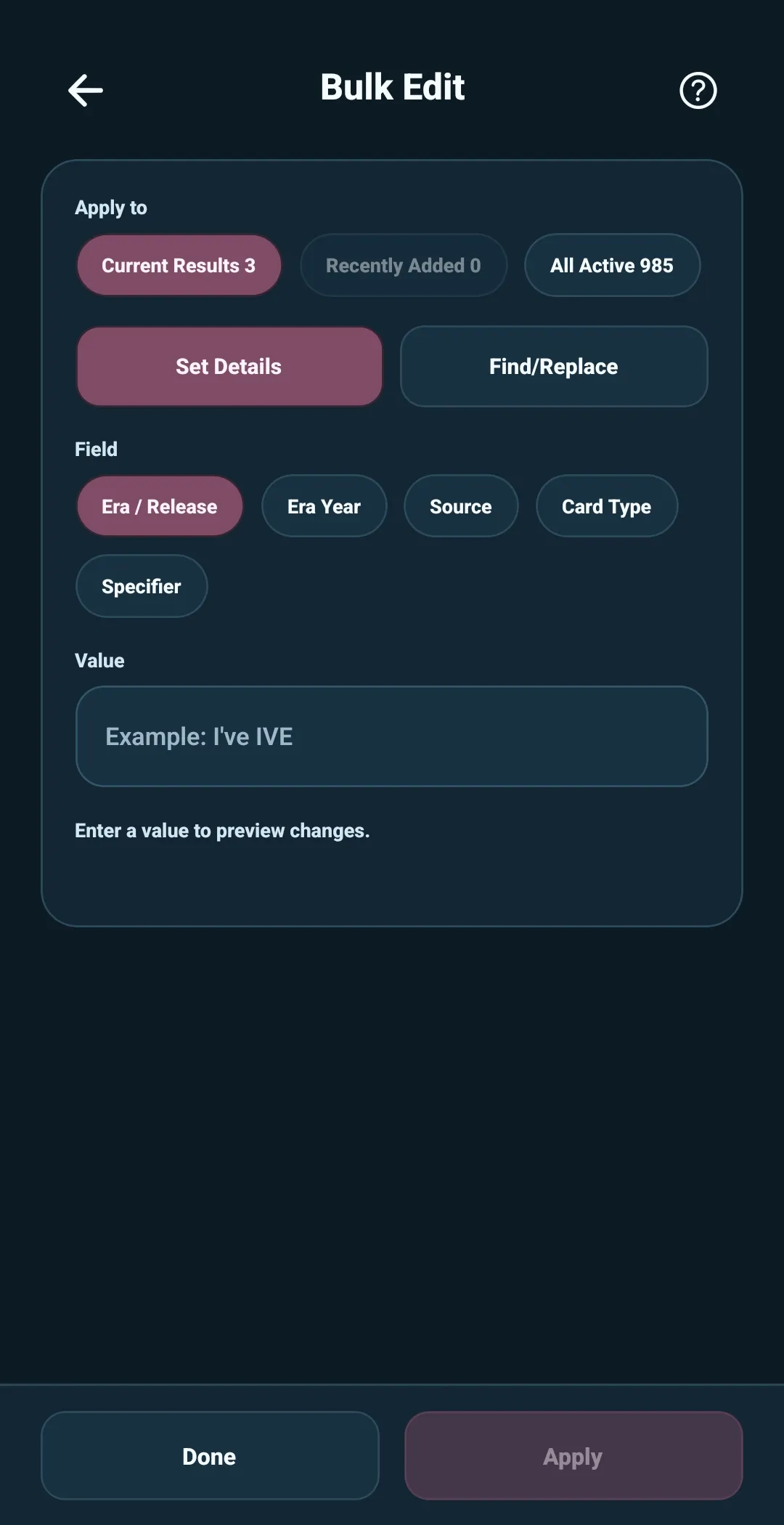
5585 offers a scope based on what you were already viewing:
- Current Results — the cards matching your active search or filters
- Recently Added — the most recent batch added from Review Added Cards
- All Active — every active card in the template
When a search or filter is active, Current Results is selected by default. When nothing is narrowed, All Active is the default.
Bulk Edit shows the number of cards in its scope. Check the visible card list before opening Bulk Edit if you need to confirm the exact cards that will be included.
Set one detail across a group
Use the standard Bulk Edit path to apply one value across the selected scope:
- Choose the card detail you want to change.
- Enter the value.
- Select Apply.
For example, select Card Type, enter Lucky Draw, and apply it to every
card in the selected scope.
This is useful for a group of cards that share one release, source, type, or other detail.
Find and replace a detail
Use Find and Replace when you need to correct part of an existing detail across multiple cards.
- Select the metadata field to change.
- Enter the text to find.
- Enter the replacement text.
- Apply the change.
For example, you could replace an older store name in the Source field across every card in the current results.
Bulk Edit changes only the selected detail field and the scope you chose. It does not change collection-side tracking such as status, wishlist priority, or personal notes.