
Save, Export, and Update a Collection
On this page
Choose what to do next
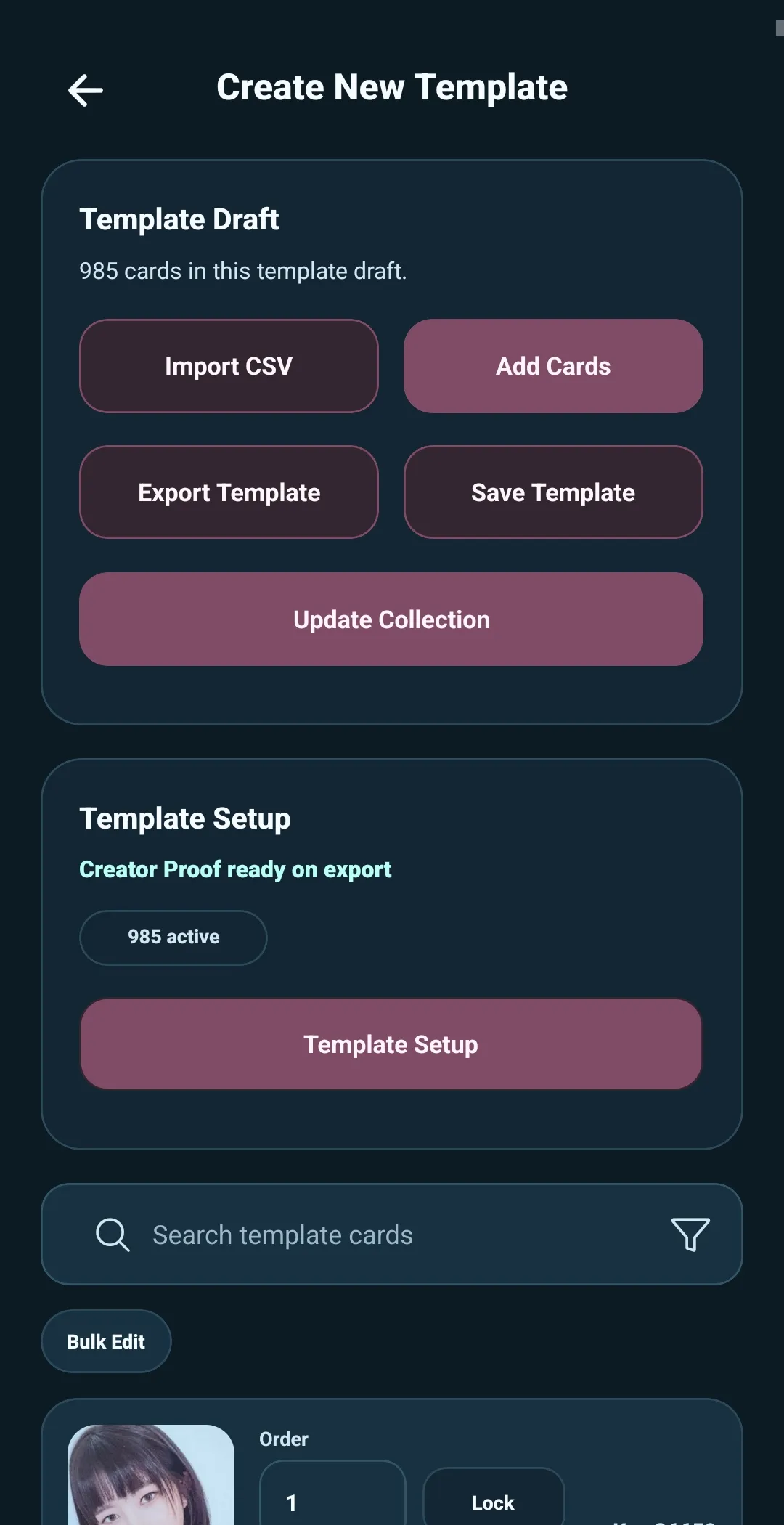
When you finish a round of work in Template Builder, choose the action that matches what you want to do next:
- Save Template keeps your work in 5585 so you can return to it later.
- Export Template creates a package you can keep or share.
- Update Collection applies the template’s card list to a collection.
Both Export Template and Update Collection also save the template, so you do not need to save separately first.
Save a template
Select Save Template when you want to keep your progress without exporting it or applying it to a collection yet.
5585 saves the template and returns you to the Template Builder start screen. You can reopen it later from Saved Templates and continue where you left off.
Use this when you are still building, researching, or correcting a card list.
Update a collection
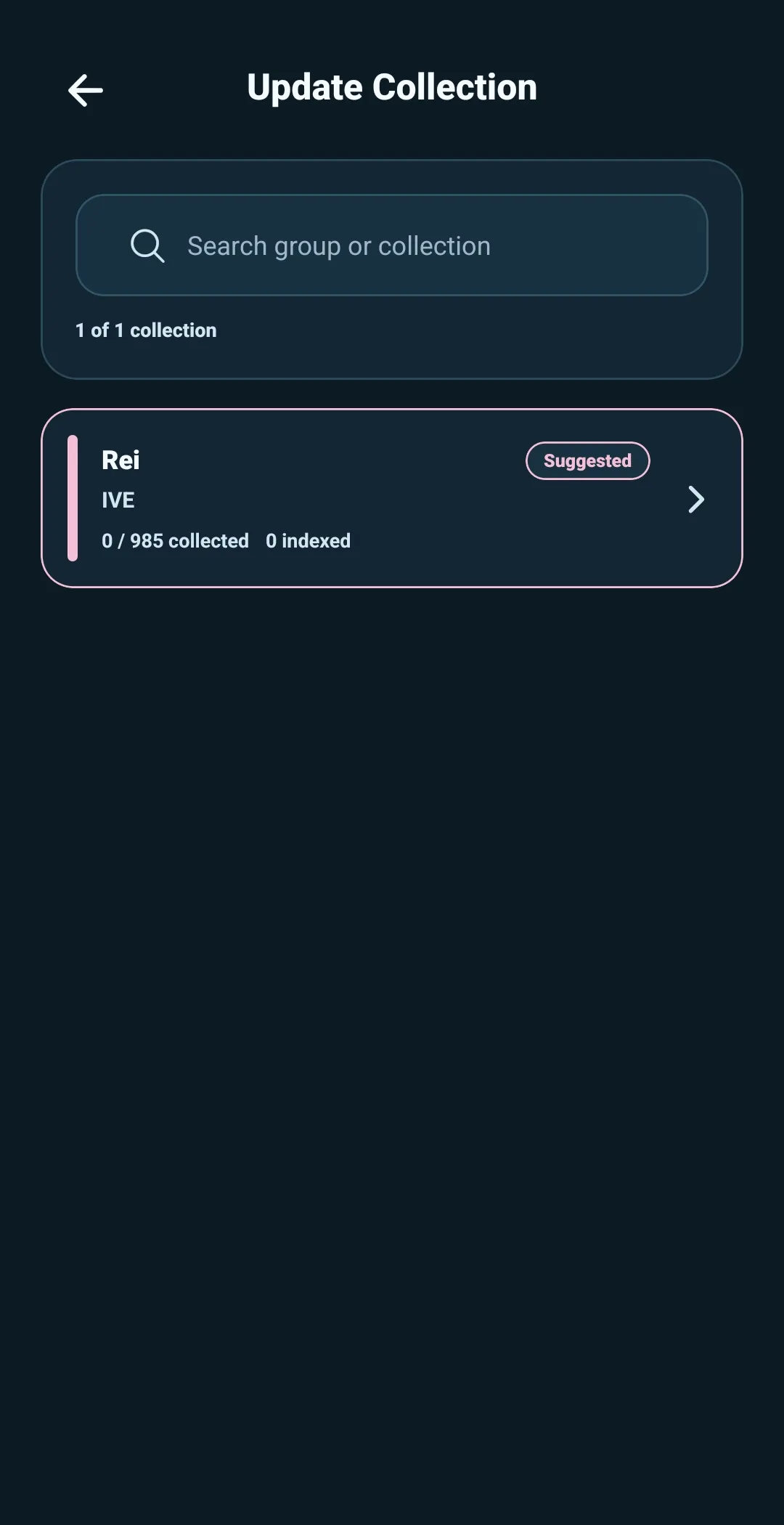
Select Update Collection when the template is ready to populate or revise a collection.
When Template Builder knows the intended target, the button can name it directly—for example, Update Rei (IVE). If it needs you to choose, 5585 suggests a collection whose Group Name and Collection Name match the Template Setup details.
You can accept the suggestion, search your collections, or scroll to select a different collection. Make sure the target is the collection you intend to update.
Before applying the template, 5585 shows information about the update and warns you when the result needs extra attention. This is where you can stop and check the target before changing its card list.
Updating a collection applies the reusable card list while keeping matching cards connected to their collection-side tracking, such as status, wishlist priority, and personal notes.
Export a template package
Select Export Template when you want a copy of the template outside the app or want to share it with another collector.
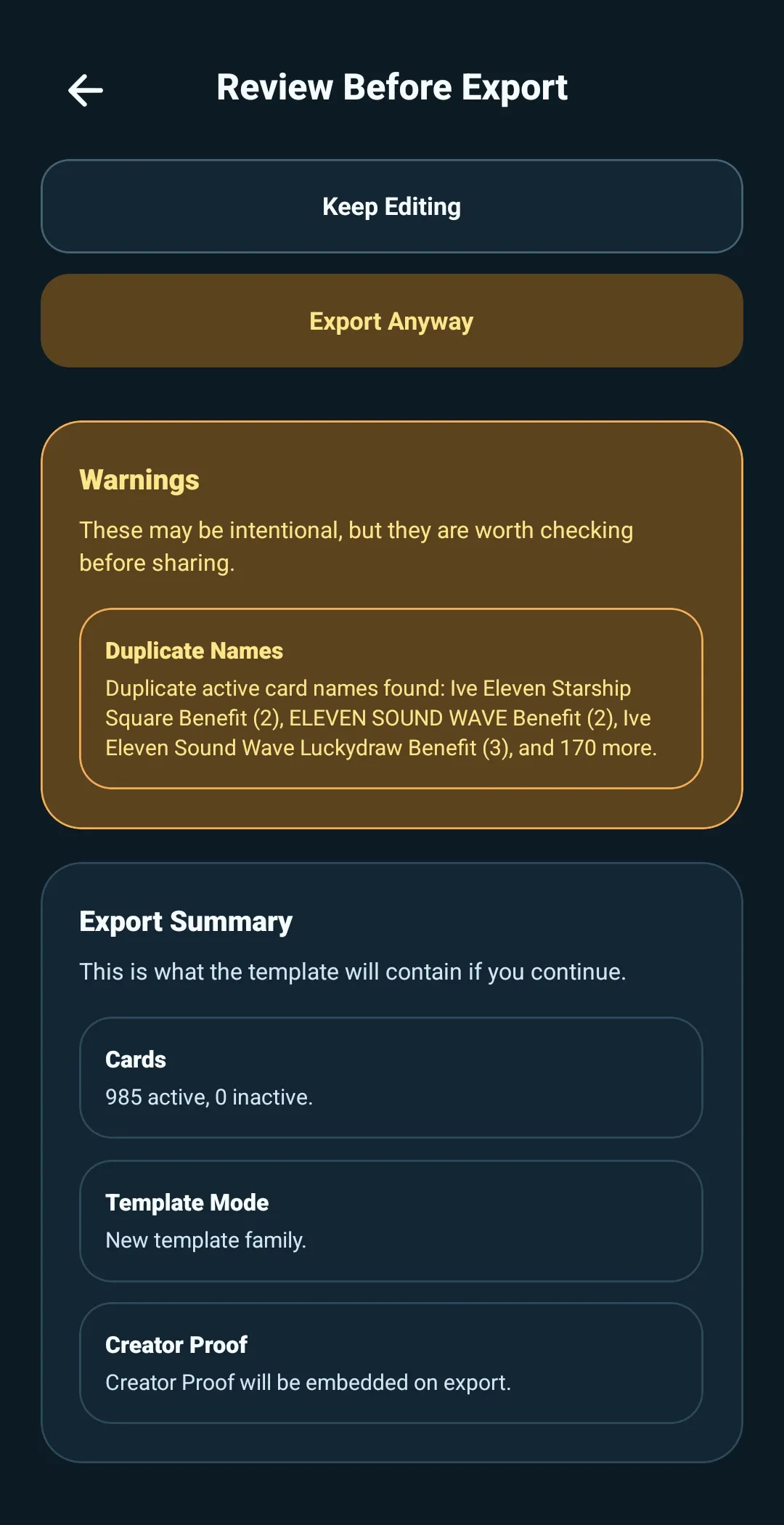
Before export, 5585 opens Review Before Export. It separates the results into three parts:
- Export Blockers — issues you must fix before export can continue
- Warnings — items that may be intentional but are worth reviewing
- Export Summary — the active and inactive card counts, template mode, and Creator Proof status
Export blockers include having no active cards or cards that are missing images.
Warnings can point out unnamed cards, missing card types, duplicate card names, inactive cards in a revision, missing collection-match details, or locked order positions. These do not always mean the template is wrong. Review them, fix anything that needs correction, or select Export Anyway when the warning is intentional.
Choose an export format
After the review, choose how you want to export:
- Share Zip — opens your device’s share sheet with one ZIP package. This is usually the easiest choice for cloud storage, messaging, or sharing with another person.
- Save Zip To Folder — saves one ZIP package to a folder you choose.
- Save Folder Package — saves the unpacked template files to a folder you choose.
A ZIP is the most reliable choice when you are moving a template between apps or services because it keeps everything together as one package. Folder packages can be useful when you need to inspect the individual files, but not every destination supports folders equally well.
When the export finishes, 5585 returns to the Template Builder start screen. The template remains saved in 5585, ready to revise again whenever you need it.