
Collection Tools: Choosing the Right Tool
On this page
Overview
Select Collection Tools at the top of any collection page to open the collection’s maintenance and utility actions.
These tools affect the collection you are currently viewing. Use them when you need to update its card list, work with personal tracking data, create a readable export, or prepare Image Matching.
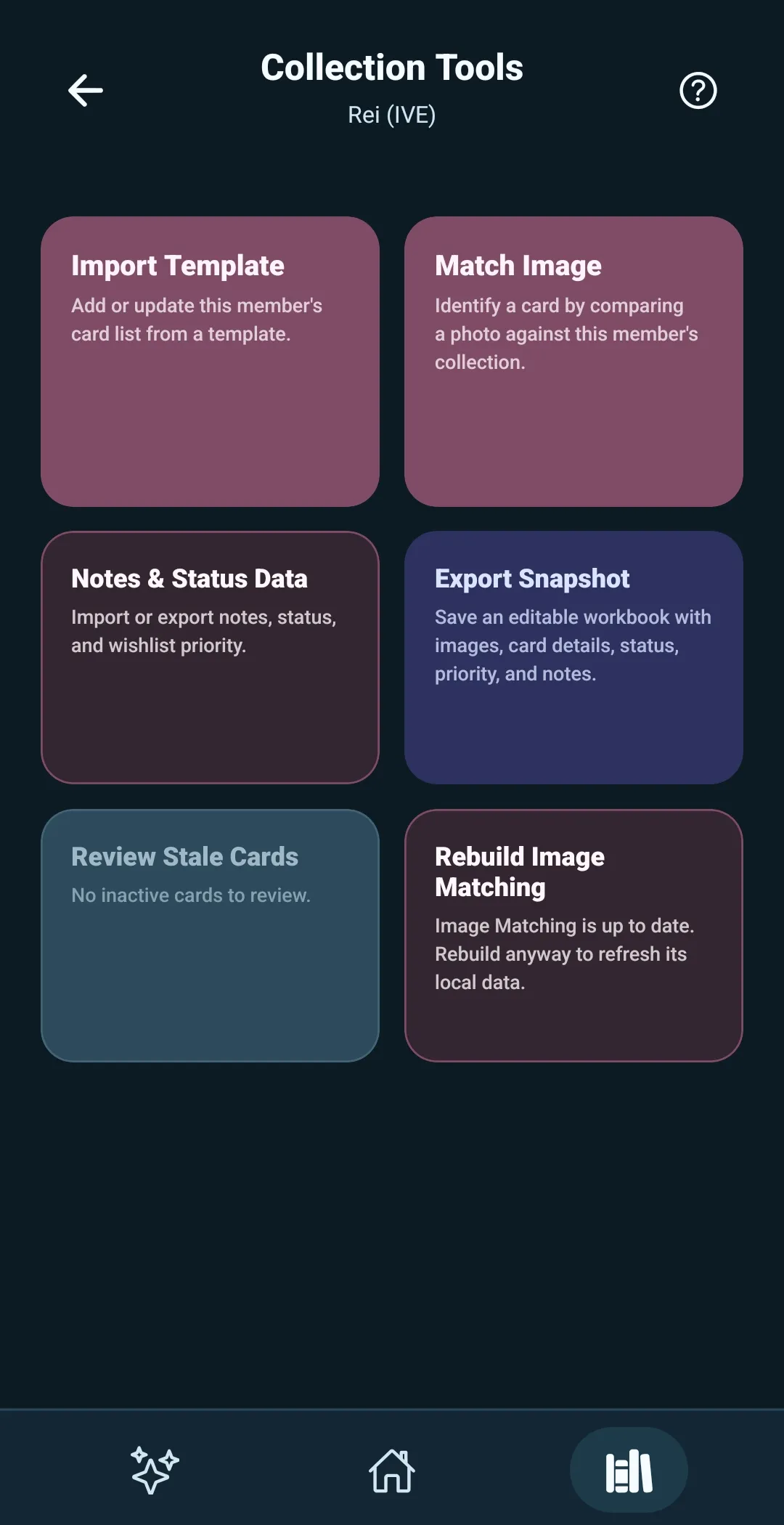
Update or add cards from a template
Choose Import Template when you want to add or update this collection from a template.
Use it to:
- Edit the template already linked to this collection
- Import an external Template ZIP
- Import an external Template Folder
This is the collection-side route for bringing a template card list into the collection.
Identify cards with a photo
Choose Match Image when you want to compare a card photo against the cards in this collection.
Image Matching uses this collection’s local image index. If the index is missing or out of date, use Rebuild Image Matching first.
Move personal tracking data
Choose Notes & Status Data to import or export your personal card tracking:
- Notes
- Collection Status
- Wishlist Priority
This tool is for the information you add to your own collection. It does not replace or export the template card list itself.
Create a readable collection export
Choose Export Snapshot to save an editable workbook containing collection images, card or item details, status, priority, and notes.
A snapshot is useful for viewing, sharing, or working with a readable copy of a collection.
It is not a restorable app backup. Use Full App Backup in Settings when you need to protect or move the app’s data.
Review cards that are no longer active
Choose Review Stale Cards or Review Stale Items when the collection has inactive cards or items from an earlier template update.
This tool lets you review older entries and decide what to remove. It stays unavailable when there are no stale cards or items to review.
Refresh the Image Matching index
Choose Rebuild Image Matching to refresh the local image data that Match Image uses.
This is useful after a template update, after changing card images, or whenever Image Matching tells you the index needs attention.
The next guides explain each of these workflows in detail.