
Edit and Organize Template Cards
On this page
Overview
Once cards are in the Template Builder editor, each card has its own tools for keeping the card list accurate and easy to use.
Open a card’s details
Select the card name field—such as Untitled Card on a new card—to open Edit Card Details.
This is where you can give the card its identifying details. Those details help create its card name and stay with the reusable template when it is saved, exported, or used in a collection.
Update a card image
Select a card image to view it full screen.
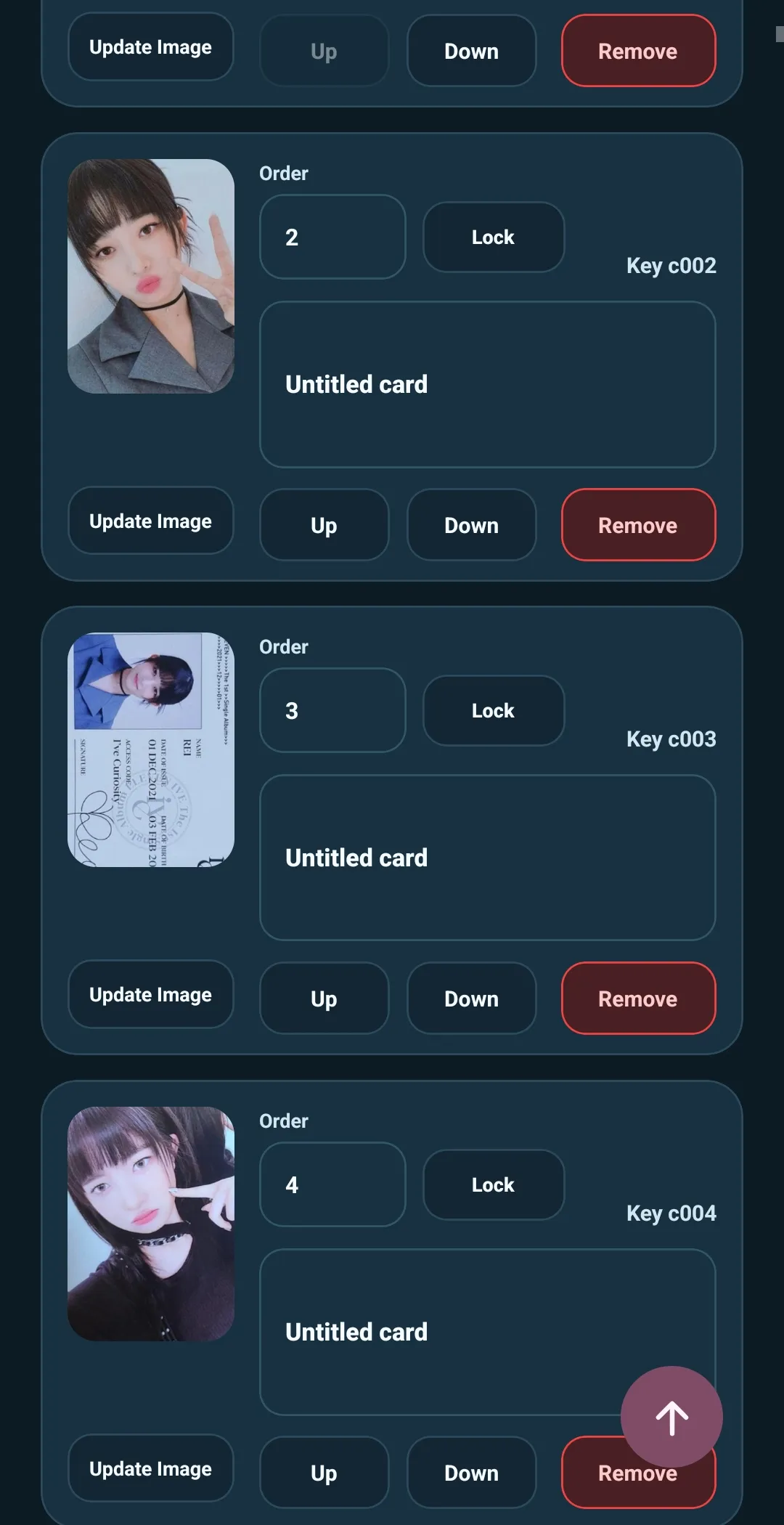
Select Update Image when the image needs to be replaced. You can choose a replacement from your library or take a new photo. Replacing an image changes the card in the template, so a later collection update can carry that corrected image into the collection.
Put cards in the right order
Each card has several ways to control where it appears in the list.
- Enter a number in the card’s Order field to move it to a specific position. Template Builder moves the card and takes you to its new place in the list.
- Use the up and down controls for small, nearby changes.
- Lock a card’s position when that spot should stay fixed.
A locked position is reserved. If another card is moved toward that position, Template Builder places it at the next available position instead.
Use order numbers for larger rearranging and the up/down controls when you are making a quick local adjustment.
Remove or deactivate a card
When creating a new template, use Remove Card to remove a card you no longer need. 5585 asks you to confirm, because the card is part of the working template.
When revising an existing template, you can choose to deactivate a card instead. A deactivated card remains in the template’s history but is no longer active in the current card list. This is useful when a card should no longer appear without losing its connection to an earlier version of the template.
If you later include that same CardID in a revision, 5585 reactivates the card. When that revised template updates a collection, its existing personal tracking can reconnect to the active card.
Keep the editor manageable
You do not need to perfect every card at once. A practical approach is to:
- Add the card images.
- Put them in a useful order.
- Fill in shared details in batches.
- Open individual cards only when they need specific corrections.
The next articles cover the details you can assign to a card, and the search and bulk-edit tools that help when the template grows.