
Match Cards and Items with Image Matching
On this page
Overview
Use Match Image in Collection Tools to compare a card or item photo against the active images in the collection you are viewing.
Image Matching finds likely visual matches. It can help identify a card, but it does not guarantee that a result is correct. Always compare the result image and details with the card or item you have.
Start with Quick Capture
Quick Capture is the fastest way to match a physical card or item.
- Open the collection.
- Select Collection Tools.
- Select Match Image.
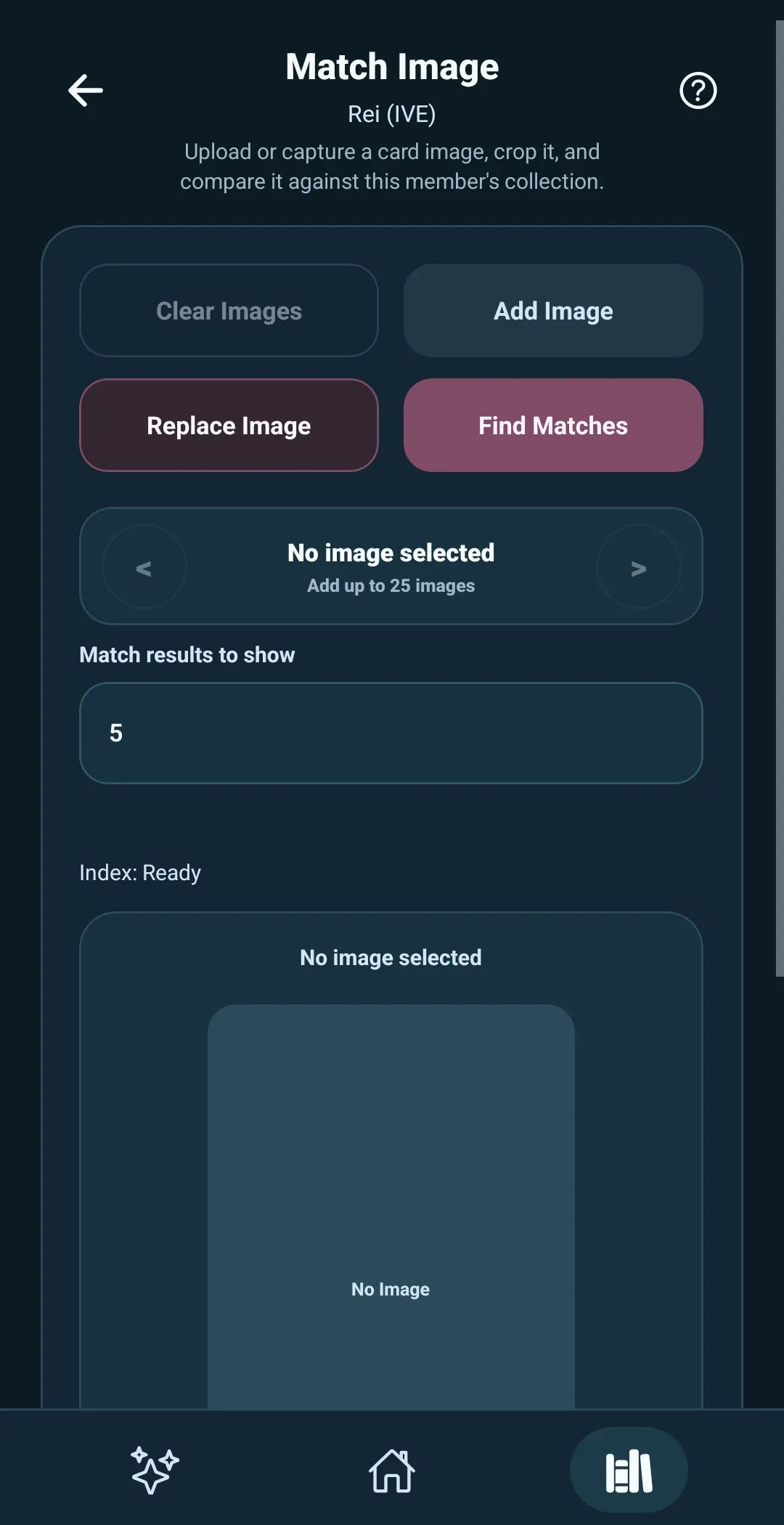
- Select Replace Image.
- Select Quick Capture.
- Place the card or item inside the on-screen guide and capture it.
5585 prepares a card-shaped image for matching and returns you to the matcher.
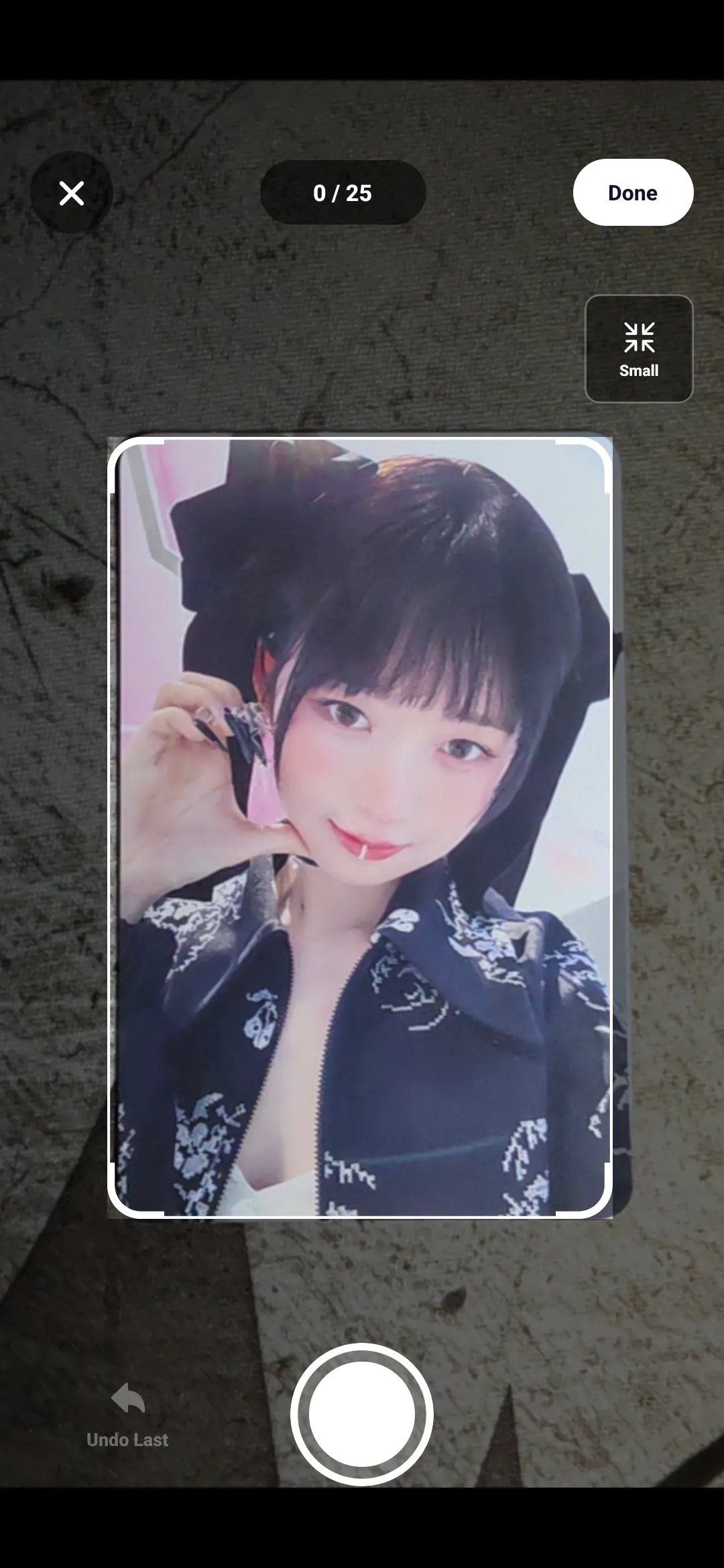
Quick Capture needs camera permission. If you already have a suitable image, select Choose From Library instead. You can also select Take Photo to use the regular camera path.
Match one image
Choose how many likely matches you want to see in Match results to show.
The default is 5.
Select Find Matches. 5585 compares the selected image with the current collection and shows the closest results below.
Match a batch
Use Add Image when you want to identify several cards or items in one session.
Choose Quick Capture to capture a batch directly, or choose an image from your library or camera. Quick Capture supports up to 25 images per matching batch. When the batch is full, run the match or clear images before starting another batch.
While capturing a batch, you can see how many images are in the batch, undo the most recent capture, and select Done when you are ready to return to Image Matching.
Use the previous and next controls to move between selected images. Each image keeps its own results.
Use Replace Image to change the currently selected query image. Use Clear Images to remove selected matcher images and their results without changing the collection.
Understand the image index
Image Matching needs a local image index for the active cards or items in the collection.
The matcher shows one of these states:
- Ready — every active card or item is indexed.
- Partial — some active cards or items are indexed.
- Not built — no active card or item images have been indexed yet.
Build the image index before matching. Without it, 5585 cannot compare your photo against the collection. A partial index can search only the cards or items already indexed, so it may miss the correct result.
If the index is not built, 5585 asks whether to build it now. If it is partial, you can build it for fuller results or continue with the cards or items that are already indexed.
To refresh an index, return to Collection Tools and select Rebuild Image Matching. When the index is already complete, rebuilding is optional.
5585 shows the current indexing or matching progress while it works.
Review likely matches
Each result shows:
- The collection image
- Card or item name
- Year and order number when available
- Collection status and applicable wishlist priority
- Personal notes
- Similarity percentage
Use the similarity percentage as a clue, not a decision. A high result may still be the wrong variation, and a lower result may be the card or item you have.
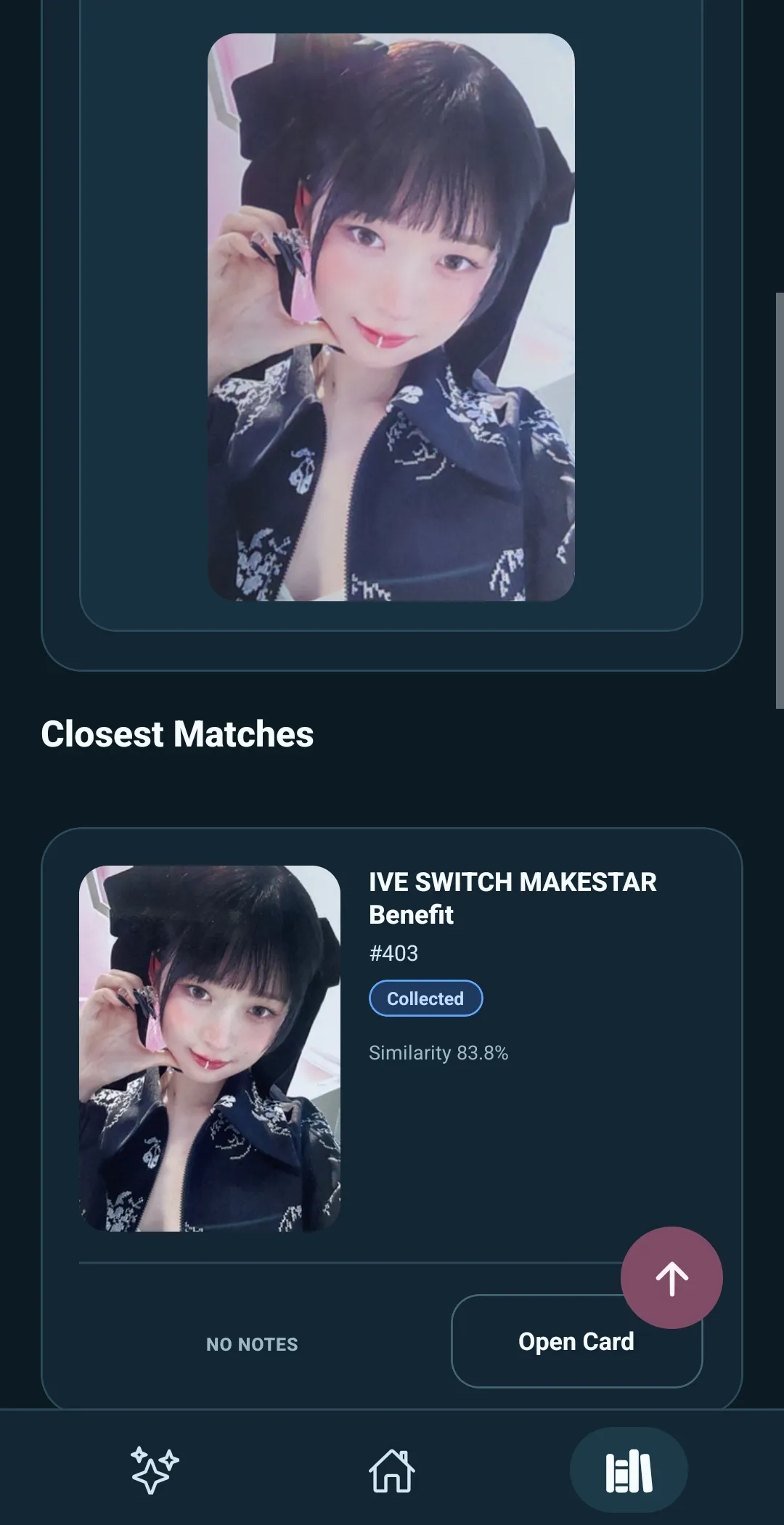
Select Open Card after you recognize a likely result. This opens Card Details, where you can verify the entry and update its collection status, wishlist priority, or notes.
Image Matching does not change a card or item automatically.