
Browse, Search, and Filter Cards in a Collection
On this page
Open a collection
Open a collection to see its complete card list. Cards stay in the order defined by the template, so the list remains consistent as you search or filter.
The collection header shows its progress, and the page includes Collection Tools, a search bar, filters, and the card list.
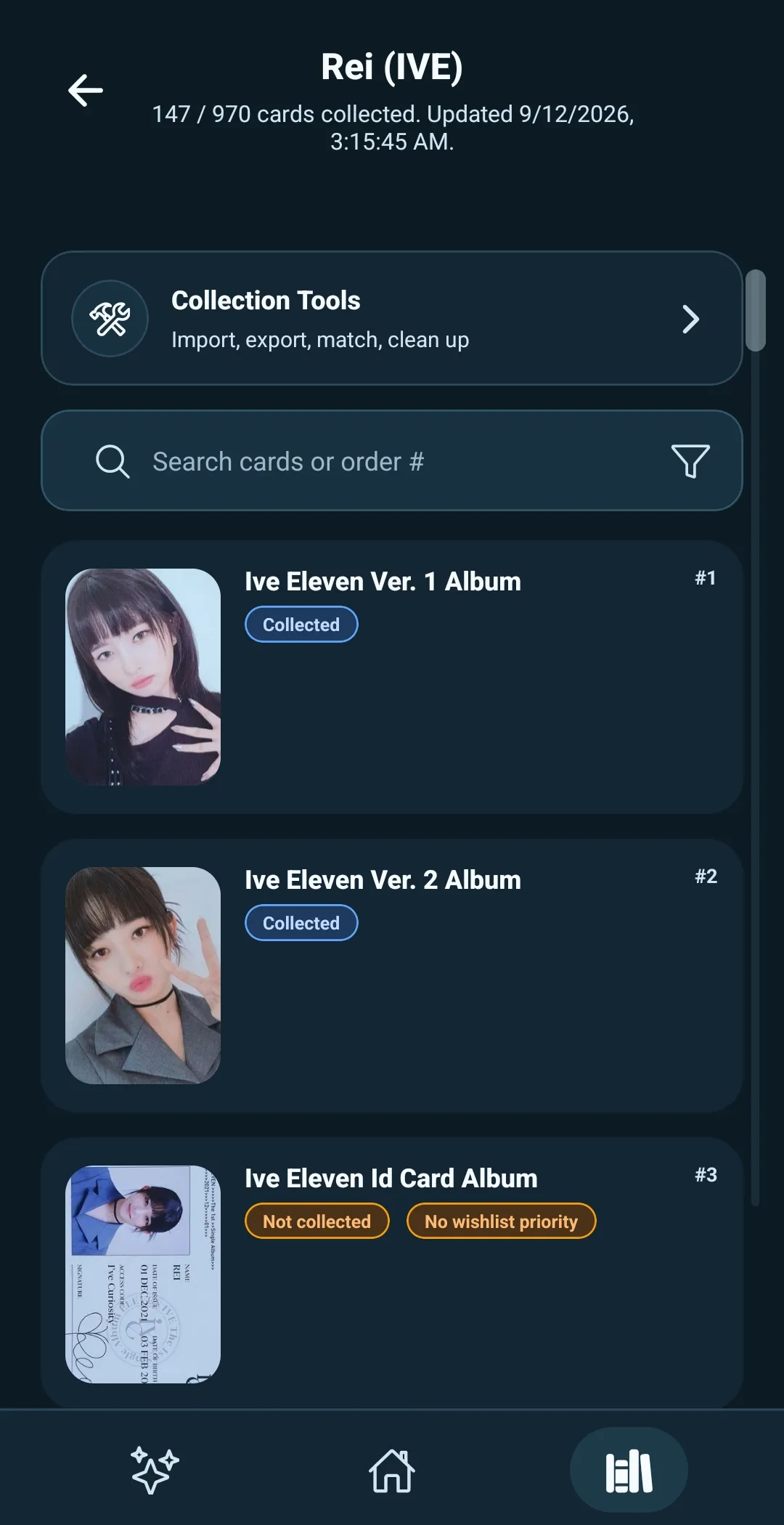
Search cards
Use the search bar to find anything connected to a card. With no filters applied, it searches broadly across the collection—not just the card name.
It can find a card’s name, card details, order number, collection status, wishlist priority, and personal notes. That means even a random word you wrote in a card’s note can bring that card up.
Use the order number when you know where a card appears in the collection. Use a release, source, or card type when you are looking for a group of related cards.
Filter the card list
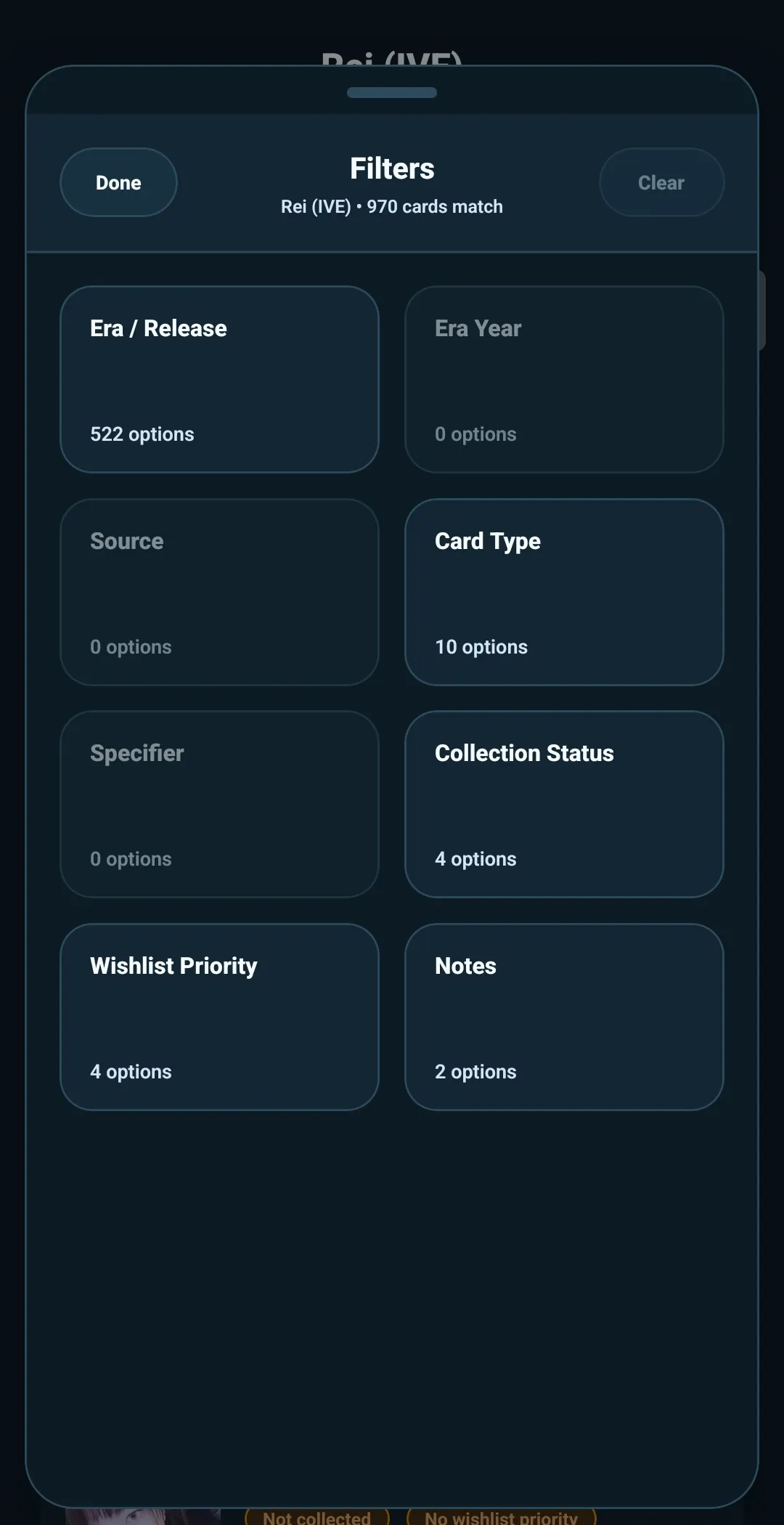
Select the filter button beside the search bar to open Filters.
The available filter categories are:
- Era/Release
- Era Year
- Source
- Card Type
- Specifier
- Collection Status
- Wishlist Priority
- Notes — Has notes or No notes
Choose one or more values inside a category. You can set each category to:
- Include — show cards with the selected values
- Exclude — hide cards with the selected values
For example, choose Collection Status, select Collected, and use
Include to see cards you already have. Or choose Notes, select No notes, and use Include to find cards that still need a note.
If a category has many values, use its internal search to find the value you need.
Combine search and filters
Search and filters work together.
For example, you can search I'VE MINE, then filter Card Type to Lucky Draw and Collection Status to Not collected. The result is the
uncollected Lucky Draw cards from that release.
The Filters screen shows how many cards match the active search and filters. This helps you confirm that you are looking at the right part of the collection before opening a card.
Clear a filtered view
If the card list looks shorter than expected:
- Clear the search bar to remove the current search term.
- Open Filters and select Clear to remove all active filters.
- When you are inside one filter category, Clear removes that category’s selected values and its Include or Exclude choice.
Search and filters only change what is visible. They do not change a card, its collection status, wishlist priority, notes, or place in the collection.
Open a card
Select any card in the result list to open its Card Details page.
That page is where you can view the card more closely and update your own collection-side tracking.