
Create or Revise a Template
Overview
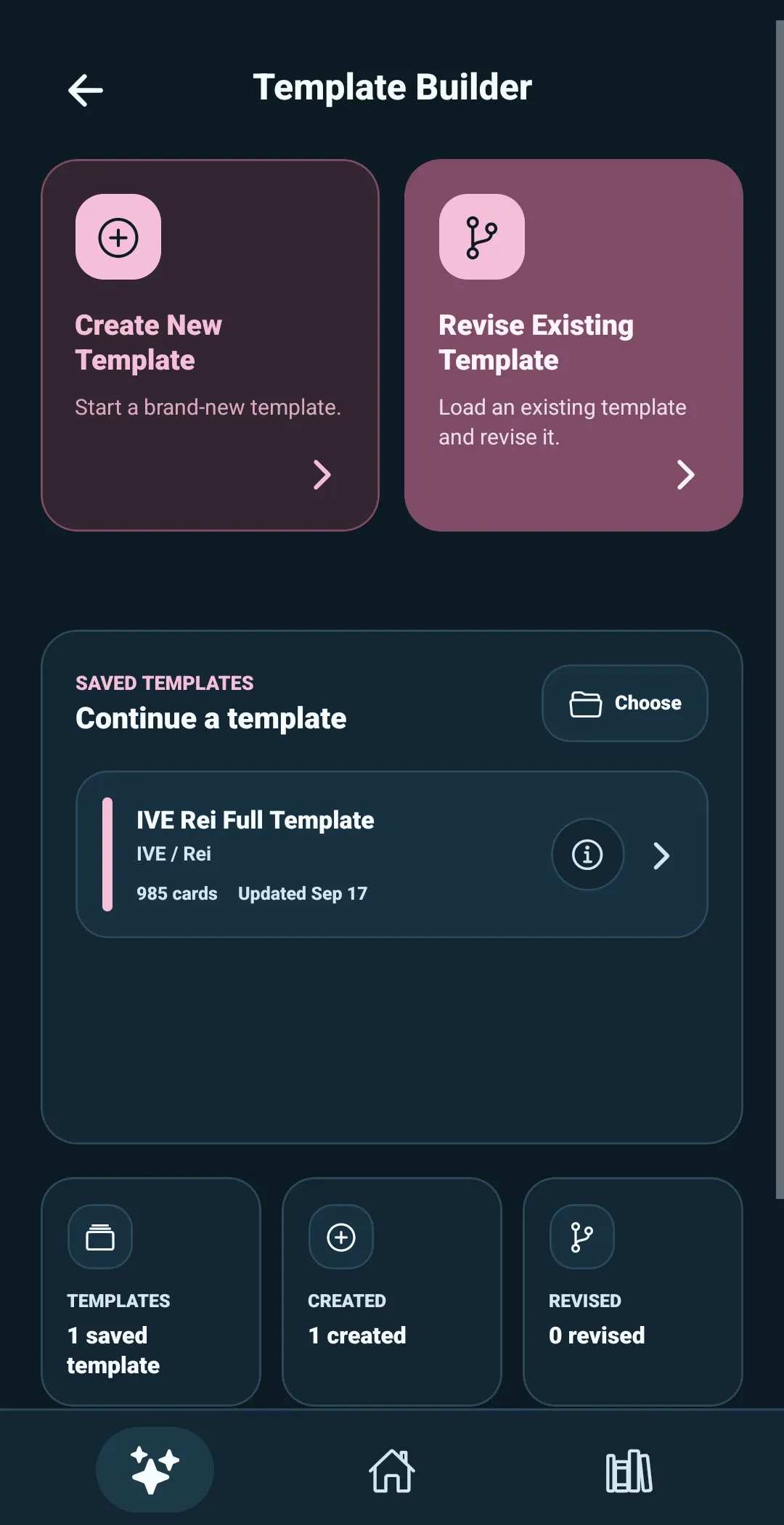
Open Template Builder by selecting the sparkle icon labeled Template Builder. Template Builder is where you create, correct, and organize the reusable card list behind a collection.
The Template Builder start screen gives you two main choices:
- Create New Template for a card list you are making from scratch
- Revise Existing Template for a template you already saved or received
Saved templates appear below these choices once you have some. Select a template to open it for revision, or select its info icon to view its details first.
Create a new template
Select Create New Template, then choose how you want to begin.
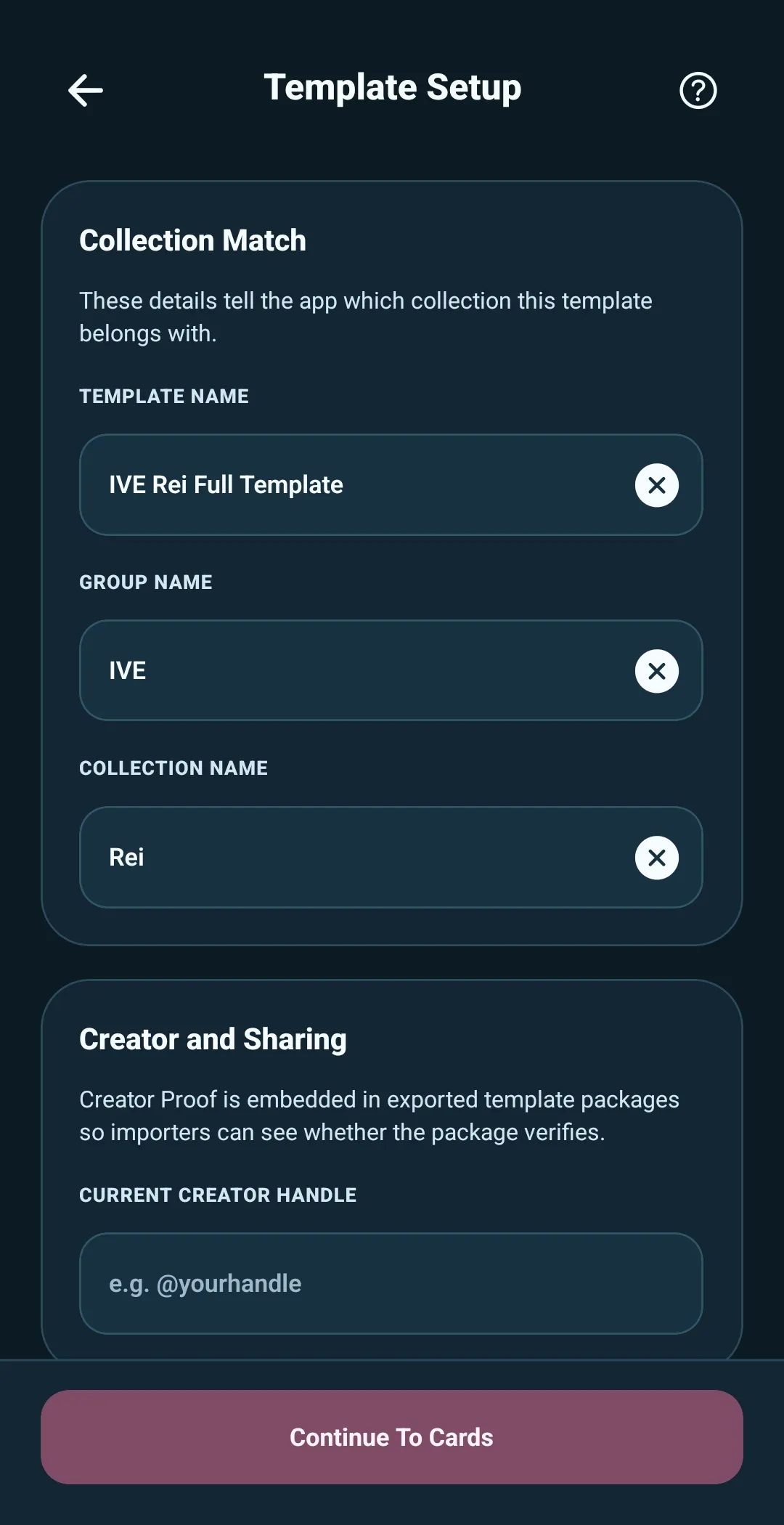
Start Empty opens Template Setup first. Enter the details that help identify the template and its intended collection:
- Template Name — the name you will see when saving, searching, and exporting the template
- Group Name — for example,
IVE - Collection Name — for example,
Rei
You can also add optional creator and sharing details. These are useful when you plan to share a template, but they are not required to begin.
Select Continue to Cards when the setup looks right. You will arrive in the Template Builder editor, ready to add and organize cards.
Start From CSV is the exception. Choose a CSV file and, if it includes image filenames, the image folder or ZIP that contains those files. 5585 opens the imported cards in the Template Builder editor first so you can confirm the import worked.
After checking the cards, open Template Setup and add the template name, group name, and collection name before saving, exporting, or updating a collection.
Revise an existing template
Select Revise Existing Template when you want to continue work on a card list that already exists. Choose one of these sources:
- Saved Template — open a template already saved in 5585
- Open Template Zip — open a template package from a ZIP file
- Open Template Folder — open an unpacked template package from a folder
Each path opens the template’s Template Setup screen with its existing details available to review. From there, select Continue to Cards to enter the Template Builder editor.
When revising, the template’s name and collection-match details help 5585 recognize its intended destination. If you later select Update Collection, 5585 can suggest a collection whose group and collection name match those details.
What comes next
Once the template is open, the Template Builder editor is where you can:
- Add card images or import card details from CSV
- Review new cards before adding them to the template
- Edit card details, images, and order
- Search or bulk-edit the card list
- Save the template, export it as a package, or update a collection
A template can start small and be revised over time. The important part is keeping the card list clear enough to use in your own collection—or share with other collectors.